
> Connecting (Power On) > Pairing (Registering a device)
Pairing (Registering a device)
-
1Insert the earphones into the charging case.
-
The indicators for the earphones light up.
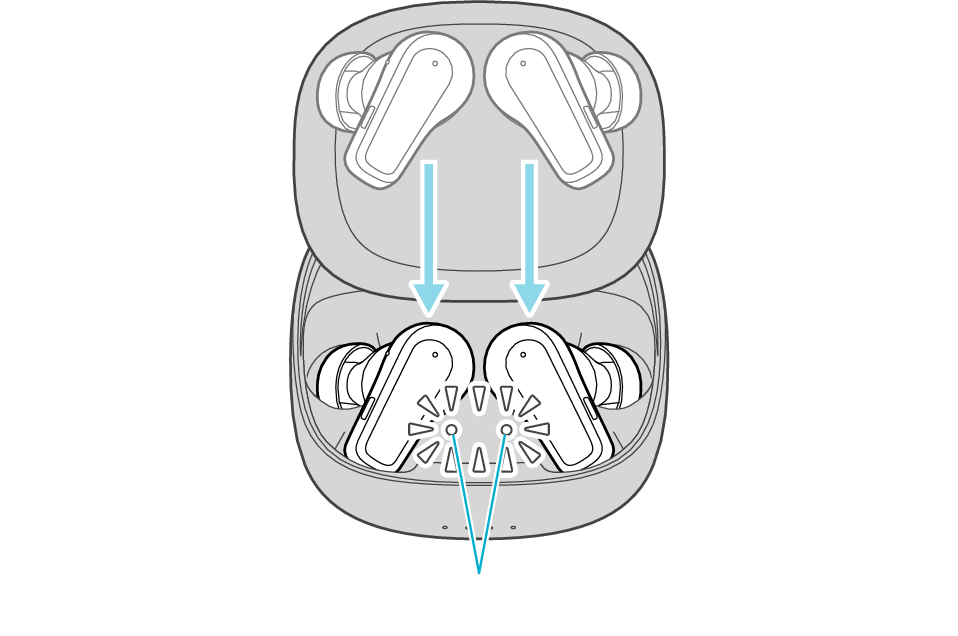
Indicators for the earphones
-
2Take out both the L (left) and R (right) earphones.
-
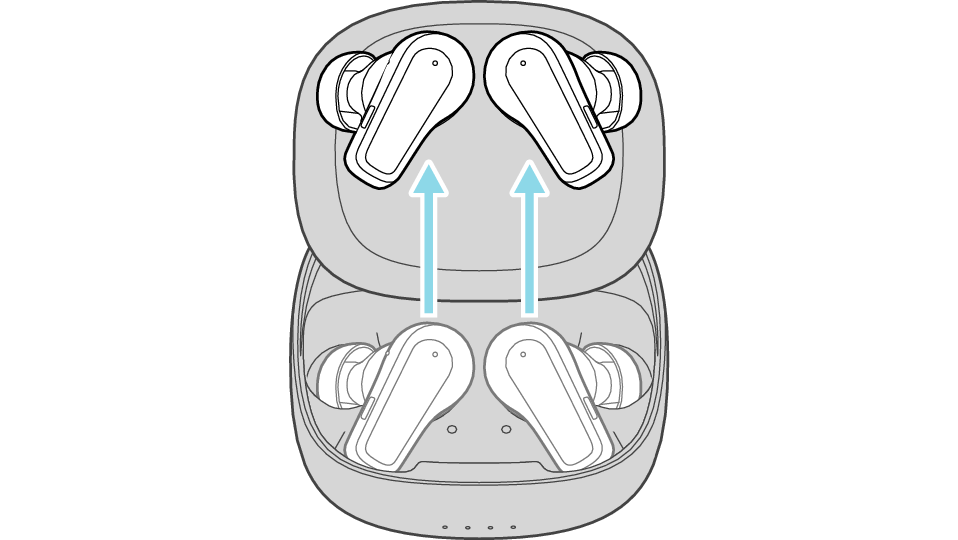
If a pop-up display appears on your Android device, perform connection by following the instructions on the display.
In other cases, try the steps below.
-
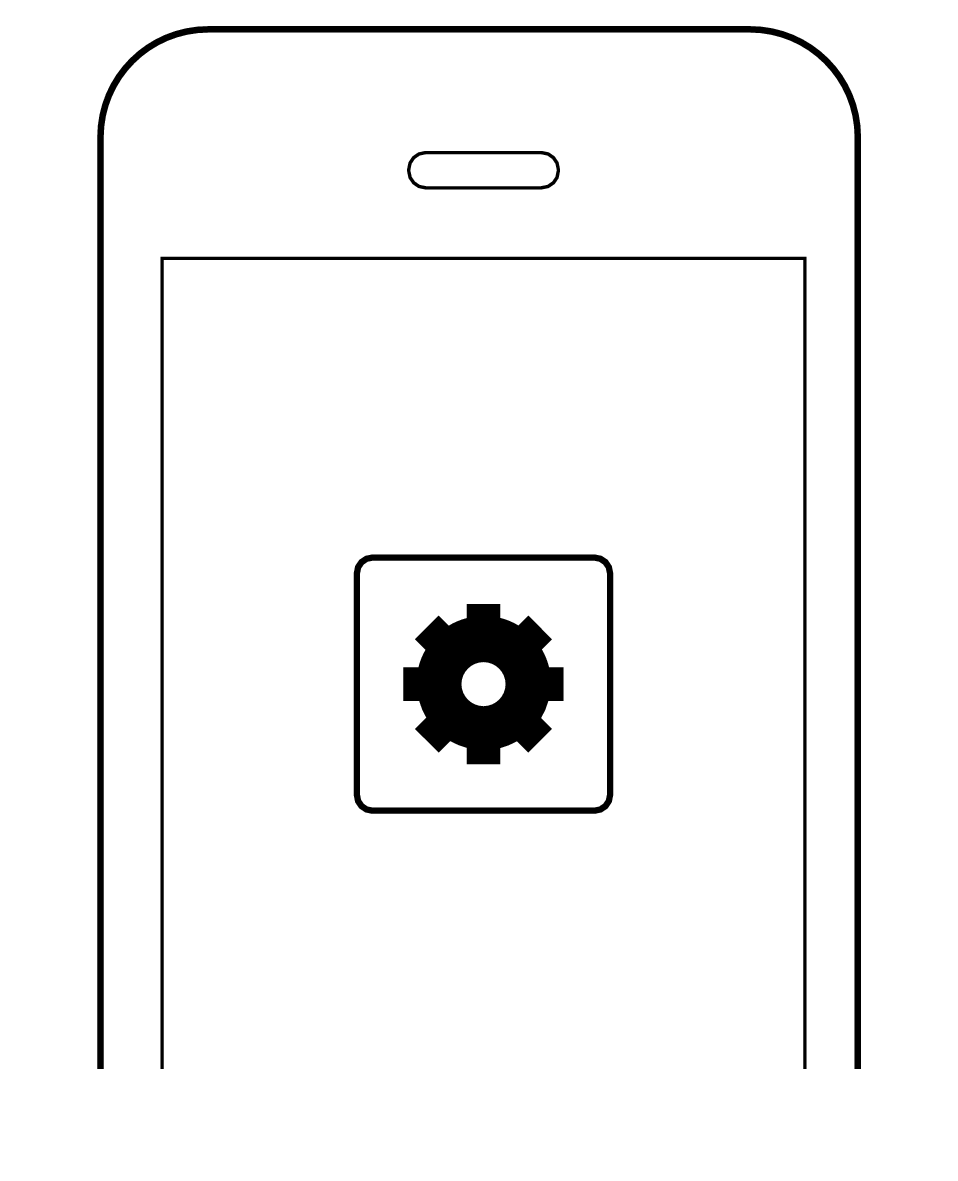
3Select the System on the BLUETOOTH device.
-
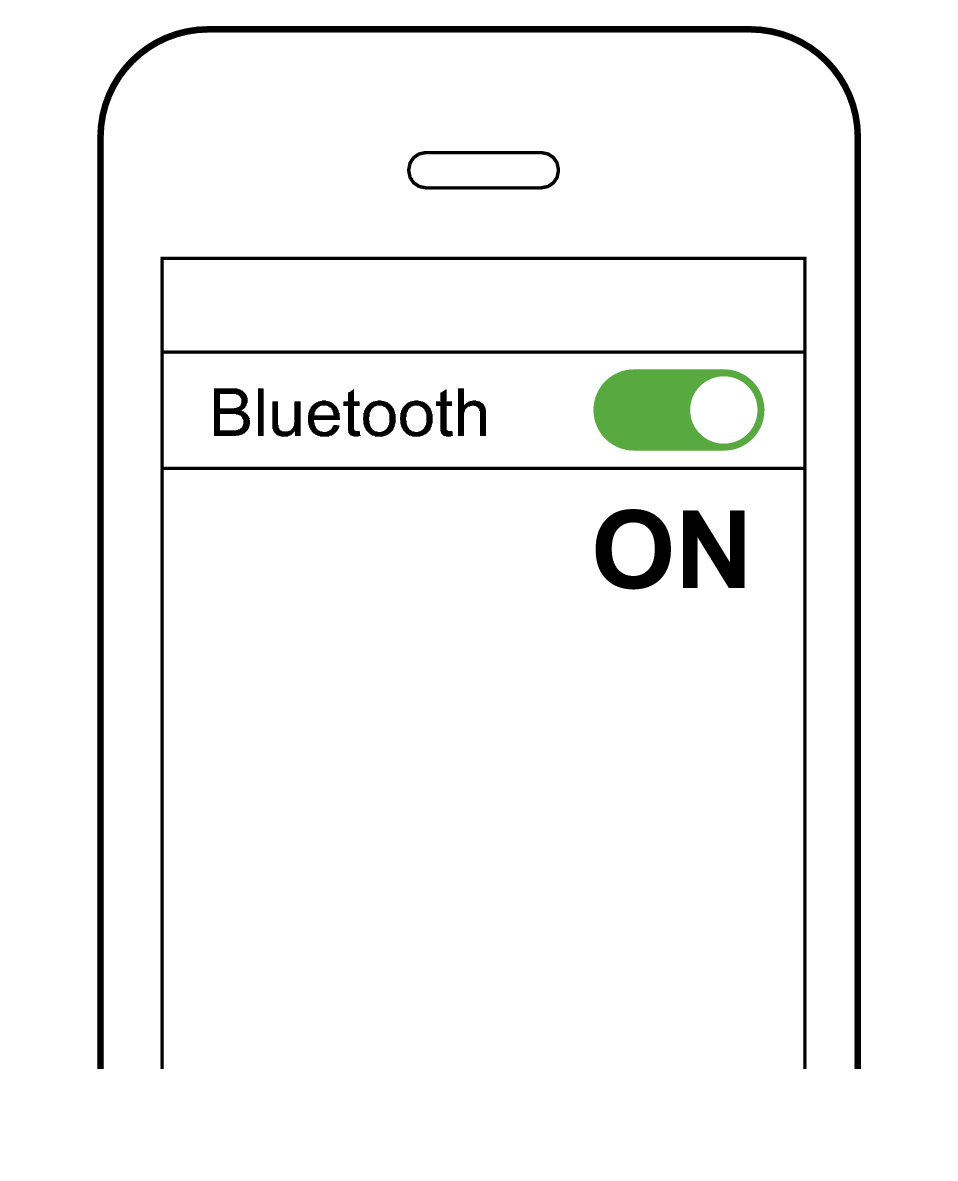
Turn on the BLUETOOTH function on the BLUETOOTH device, and then select this unit from the device list.

-
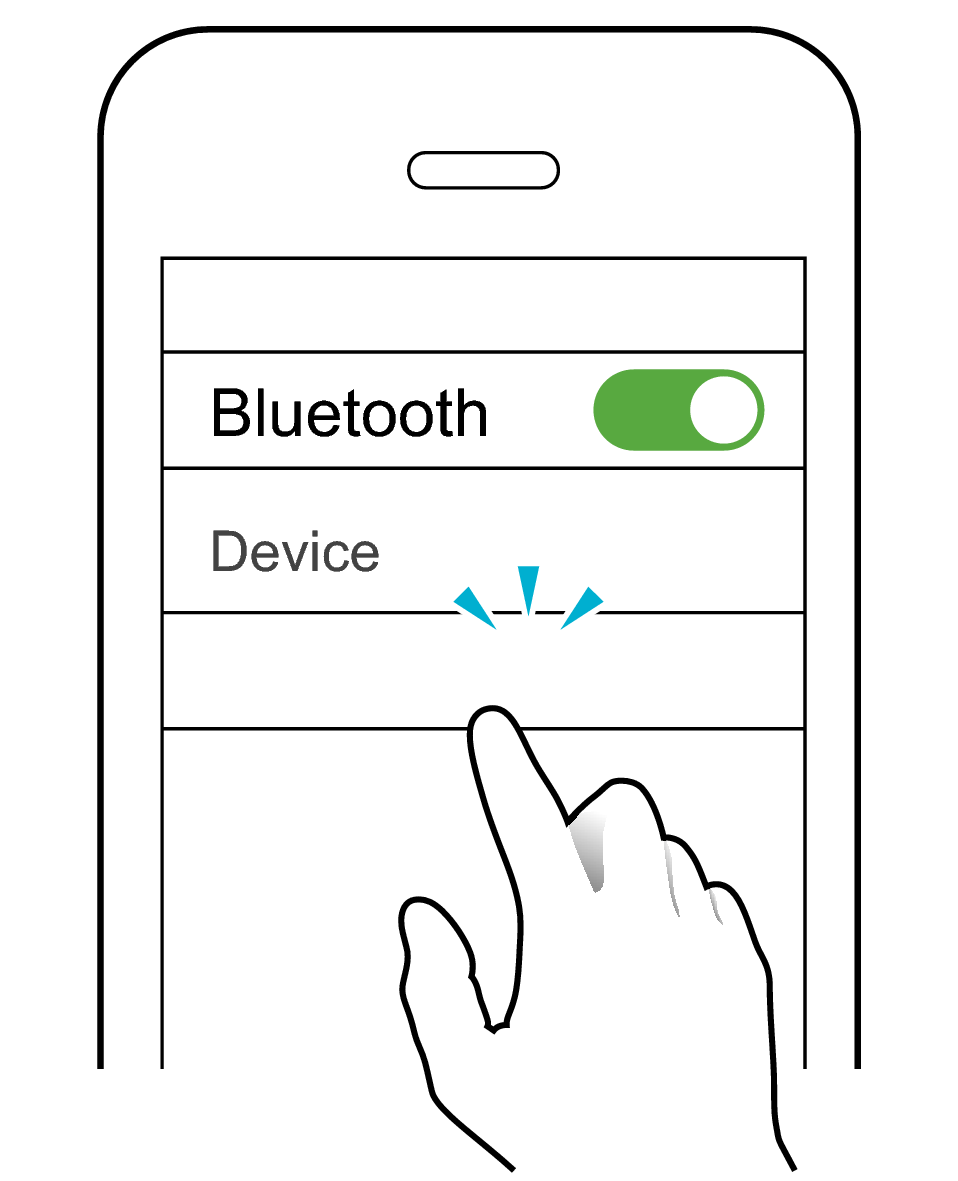
KENWOOD GLASS Core Pro
Check the screen on the Bluetooth device to confirm whether connection is successful.
When connection is established, you will hear an audio guidance notification “Device One Connected” through the earphones.
Once connection has been established, the earphones can be used for listening to music.
If connection (pairing) is not completed within 5 minutes after the indicator starts flashing, the earphone automatically turns itself off.
-
1Insert the earphones into the charging case.
-
The indicators for the earphones light up.
Indicators for the earphones
-
2Take out both the L (left) and R (right) earphones from the charging case and place them in your ears.
-
-
3Press and hold the button on the L or R earphone for 5 seconds.
-
When you hear a “beep beep” sound after 1 second and “beep beep beep” sound after 5 seconds, release your finger from the button.
You will hear a notification “Pairing” via the audio guidance.
If the earphones are currently connected to a device, connection with that device will be disconnected at this time.
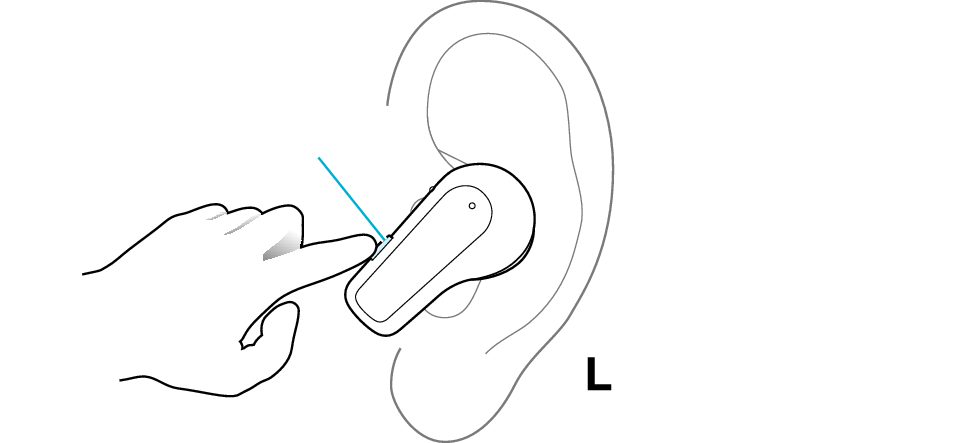
Button
The L earphone is used in the illustration.
If a pop-up display appears on your Android device, perform connection by following the instructions on the display.
In other cases, try the steps below.
-
4Select the System on the BLUETOOTH device.
-
Turn on the BLUETOOTH function on the BLUETOOTH device, and then select this unit from the device list.
-
KENWOOD GLASS Core Pro
Check the screen on the Bluetooth device to confirm whether connection is successful.
When connection is established, you will hear an audio guidance notification “Device One Connected” through the earphones.
Once connection has been established, the earphones can be used for listening to music.
If connection (pairing) is not completed within 5 minutes after the indicator starts flashing, the earphone automatically turns itself off.