
> Using the Different Features (Using the App) > Using the multipoint function
Using the multipoint function
You can pair the earphones with two devices (mobile phone, smartphone, etc.) at the same time and go into standby or switch the device for playing music (multipoint).
Music cannot be played or a call cannot be answered on two devices simultaneously.
We do not guarantee all operations of the BLUETOOTH device. If the BLUETOOTH device cannot be operated using the System, operate on the BLUETOOTH device.
Depending on the Bluetooth device in use, the second device may be disconnected while the first device is in use.
When connecting the computer and smartphone using the mutlipoint, starting a conference or call on the computer may cause the System to lose connection with the smartphone and unable to reconnect depending on the surrounding environment and BLUETOOTH device. The connection will reestablish once the conference or call is ended.
Using the multipoint function for pairing
-
1Pair the System with first BLUETOOTH device.
-
Refer to Pairing (Registering a device).
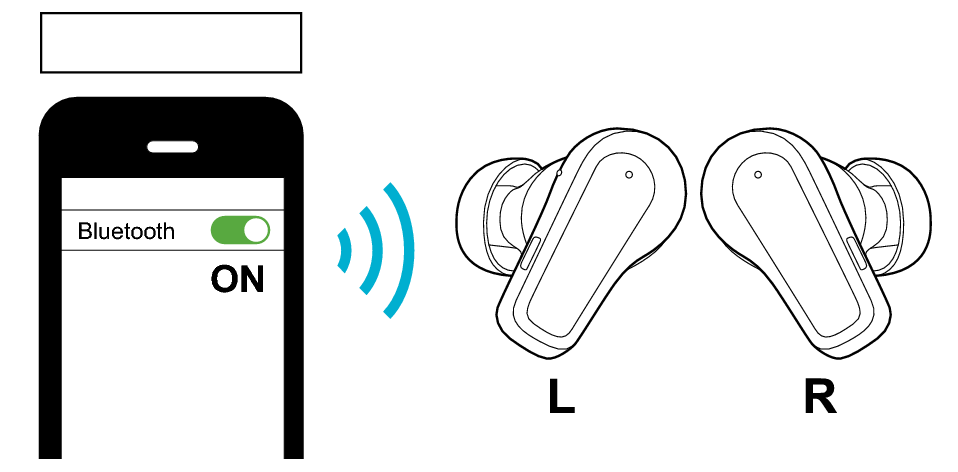
First Device
-
2Set the Bluetooth setting of the first device to “Off”.
-
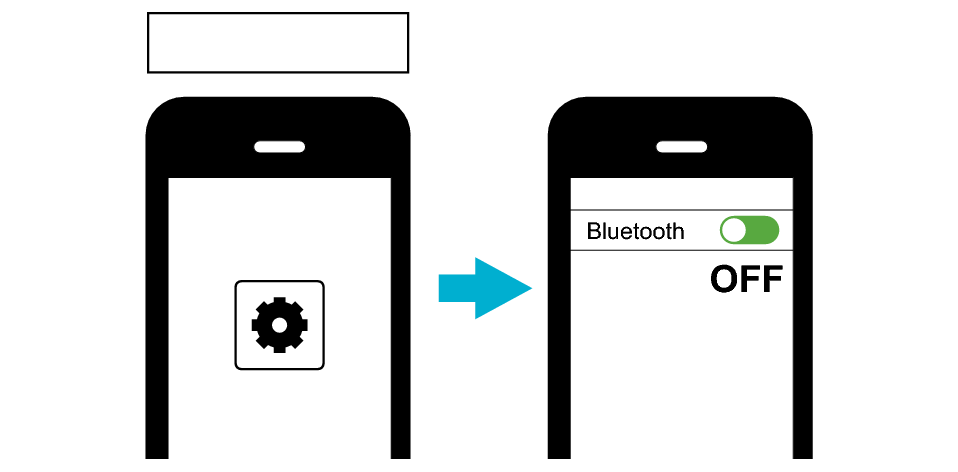
First Device
-
3Place the earphones in the charging case.
-
The indicators for the earphones light up.
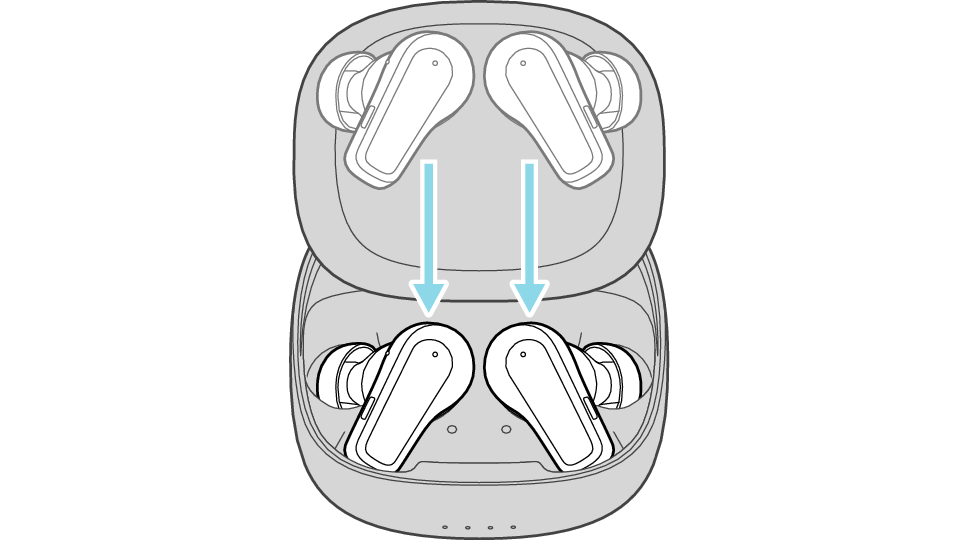
-
4Take out both L and R earphones from the charging case and wear them in your ears.
-
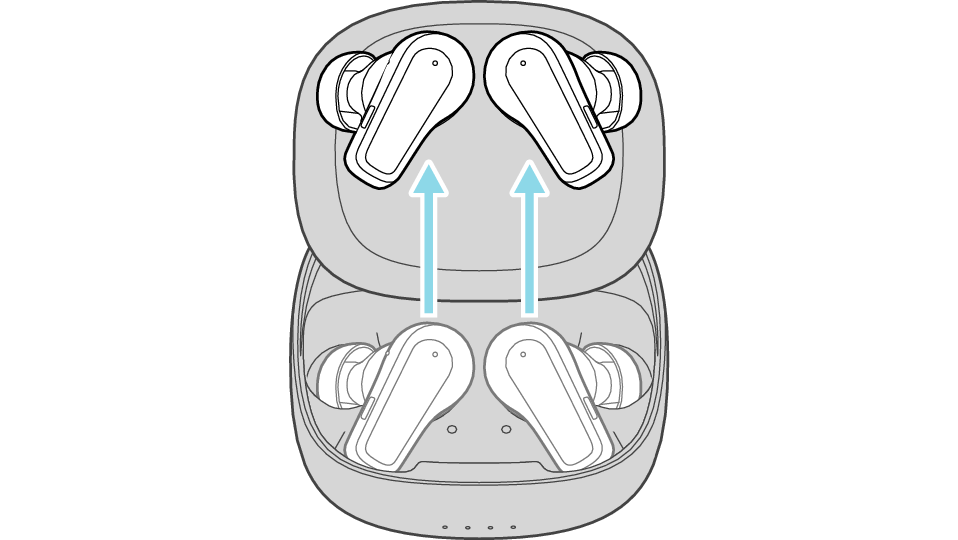
-
5Press and hold the button on the L or R earphone for 5 seconds.
-
When you hear a “beep beep” sound after 1 second and “beep beep beep” sound after 5 seconds, release your finger from the button.
You will hear a notification “Pairing” via the audio guidance.
If the earphones are currently connected to a device, connection with that device will be disconnected at this time.
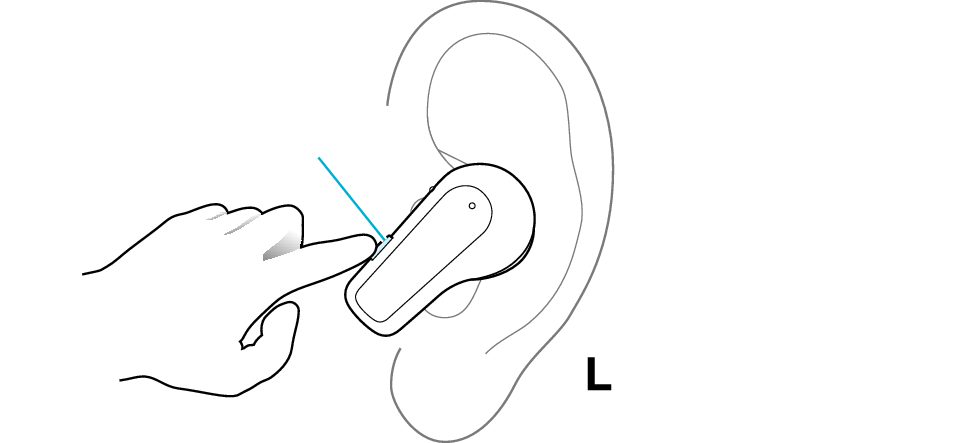
Button
The L earphone is used in the illustration.
If a pop-up display appears on your Android device, perform connection by following the instructions on the display.
In other cases, try the steps below.
-
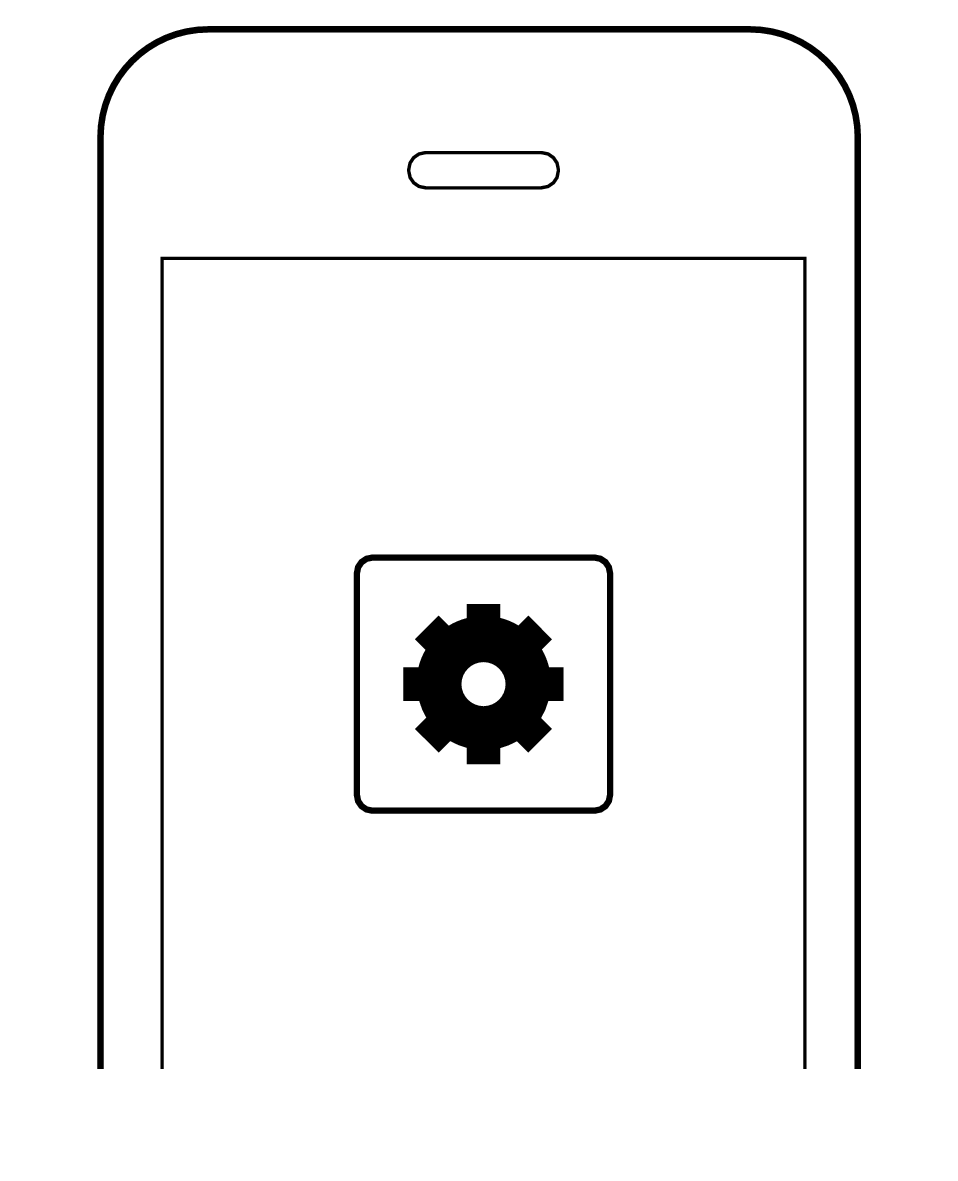
6Select the System on the BLUETOOTH device.
-
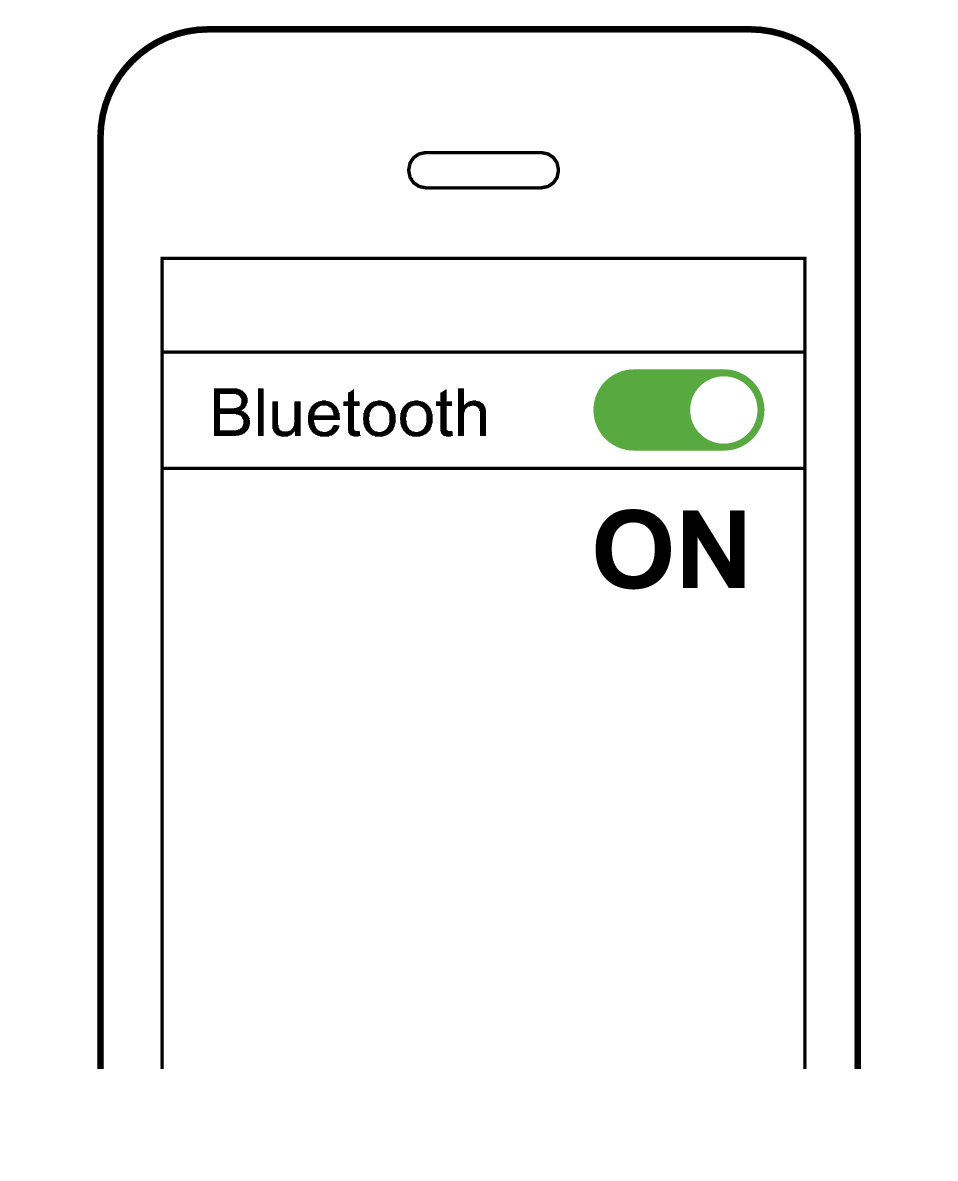
Turn on the BLUETOOTH function on the BLUETOOTH device, and then select this unit from the device list.

-
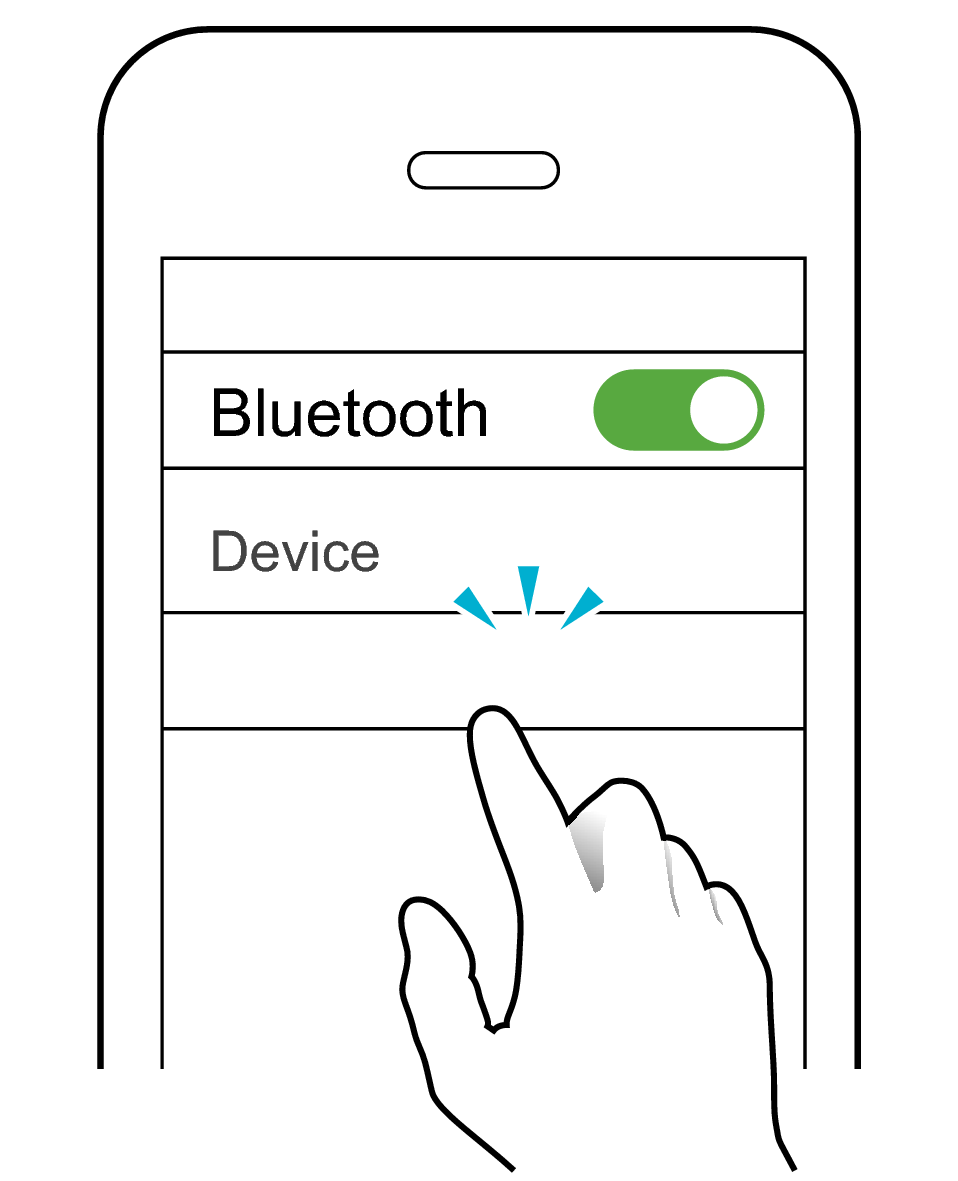
KENWOOD GLASS Core Pro
Check the screen on the Bluetooth device to confirm whether connection is successful.
When connection is established, you will hear an audio guidance notification “Device One Connected” through the earphones.
Once connection has been established, the earphones can be used for listening to music.
-
7Set the Bluetooth setting of the first device to “On”. If it is not reconnected automatically, select this earphone unit again.
-
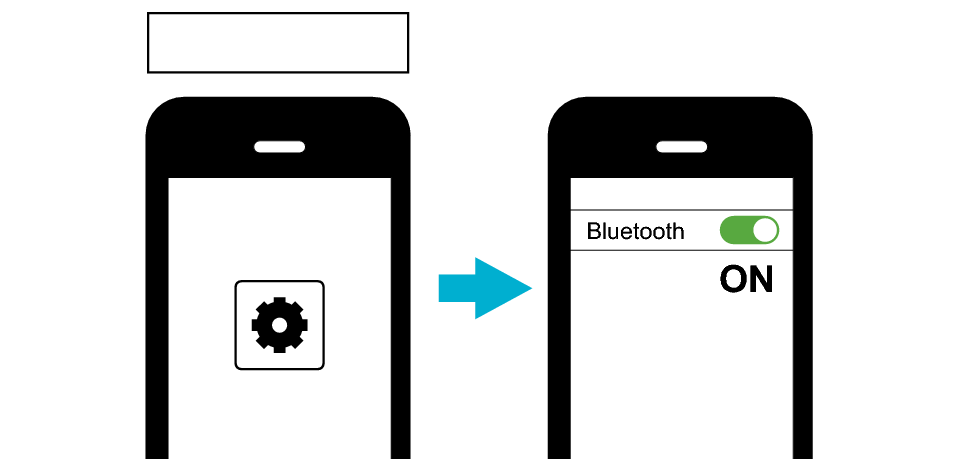
First Device
“Device Two Connected” can be heard from the audio guidance when connection with both Bluetooth devices is established.
During multipoint connection, you can answer incoming calls from the second BLUETOOTH device even while listening to music on the first BLUETOOTH device.
If the earphones are not connected to the Bluetooth device, select this earphone unit on the Bluetooth device to establish connection.
Answering an incoming call while multipoint is in use
The following are steps for operating the earphones to answer an incoming call to the second Bluetooth device while you are in a call to the first Bluetooth device.
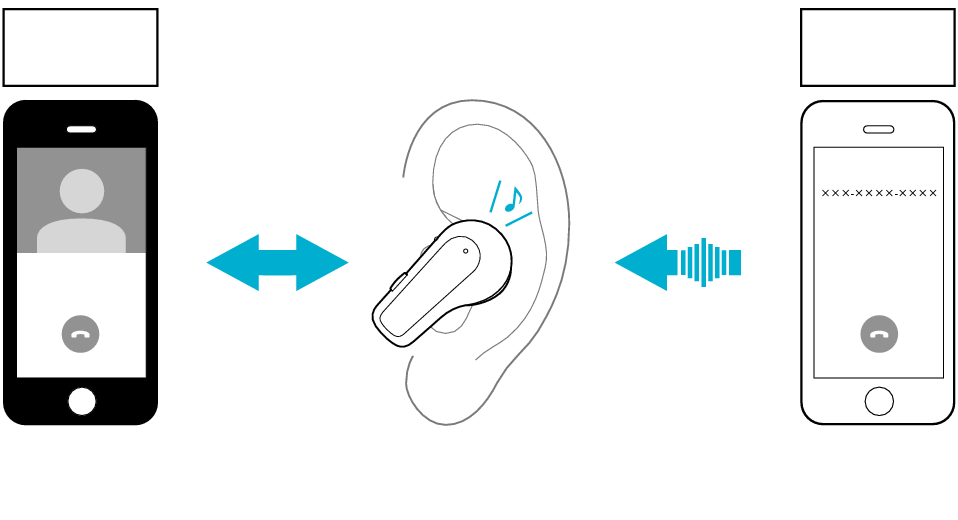
First Device
Second Device
Incoming call from second Bluetooth device while in a call to the first Bluetooth device
In a Call
Incoming Call
You will hear a call alert when there is an incoming call to the second Bluetooth device.
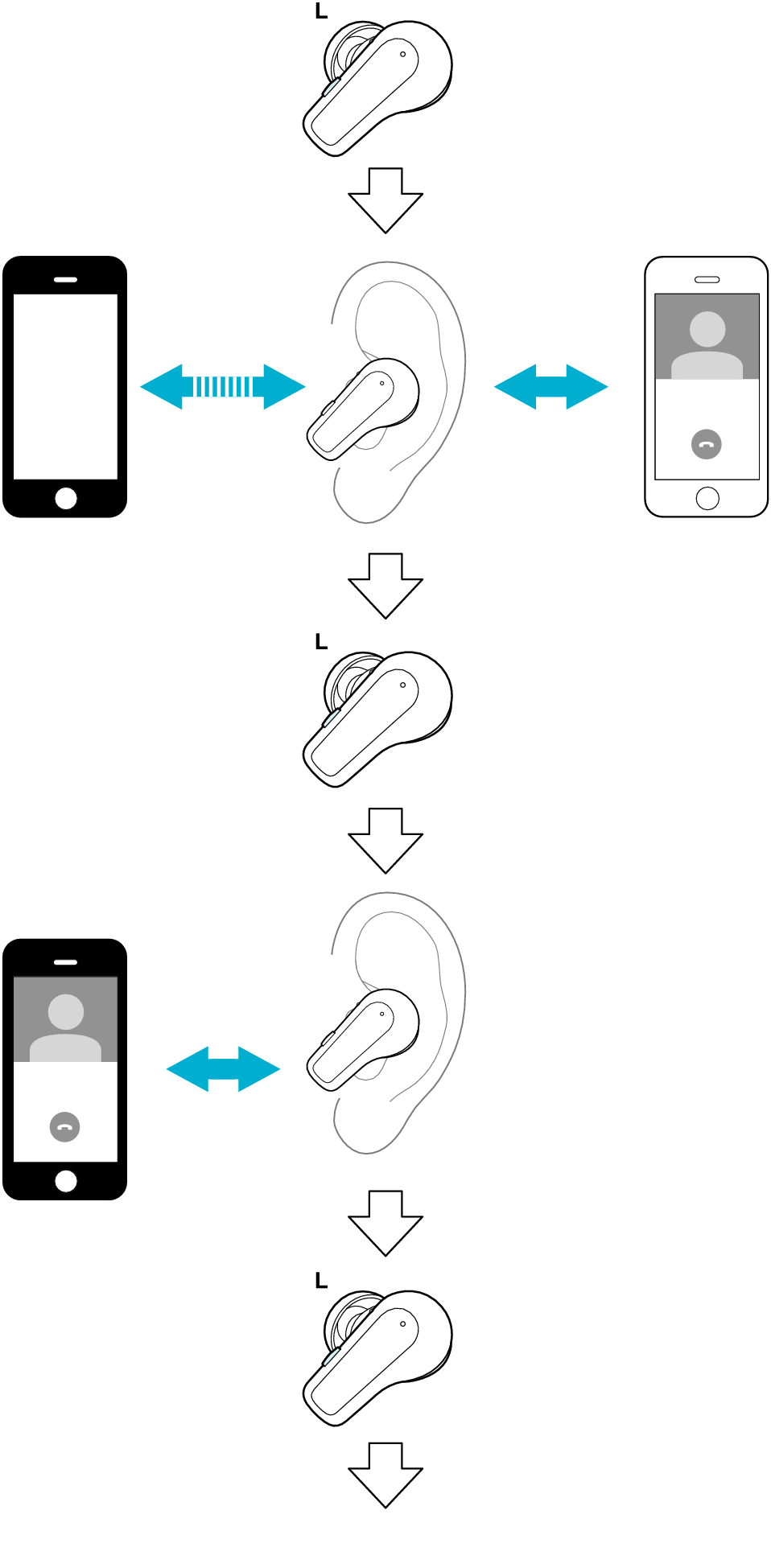
Press the L button once
Remains connected
Switches to answering the call to the second Bluetooth device
In a Call
To end the call with the second device, press and hold the L button for 1 second.
Returns to answering the call to the first Bluetooth device
In a Call
To end the call with the first device, press and hold the L button for 1 second.
Ends call
If the Bluetooth device is a computer, operate the computer to answer or end a call.
During multipoint connection, operating the remote control of the earphones controls the operation of the Bluetooth device that is currently playing music or in a call. It does not control the operation of the other device.
If you are not playing music or in a call on both Bluetooth devices, operating the remote control controls the operation of one of the Bluetooth devices but not the other. You cannot select which Bluetooth device to control in this case. If you want to do so, play back music or make a call on the Bluetooth device you want to use.
If you are only using one side of the earphone, you can also perform the same operation using the side that is in use.
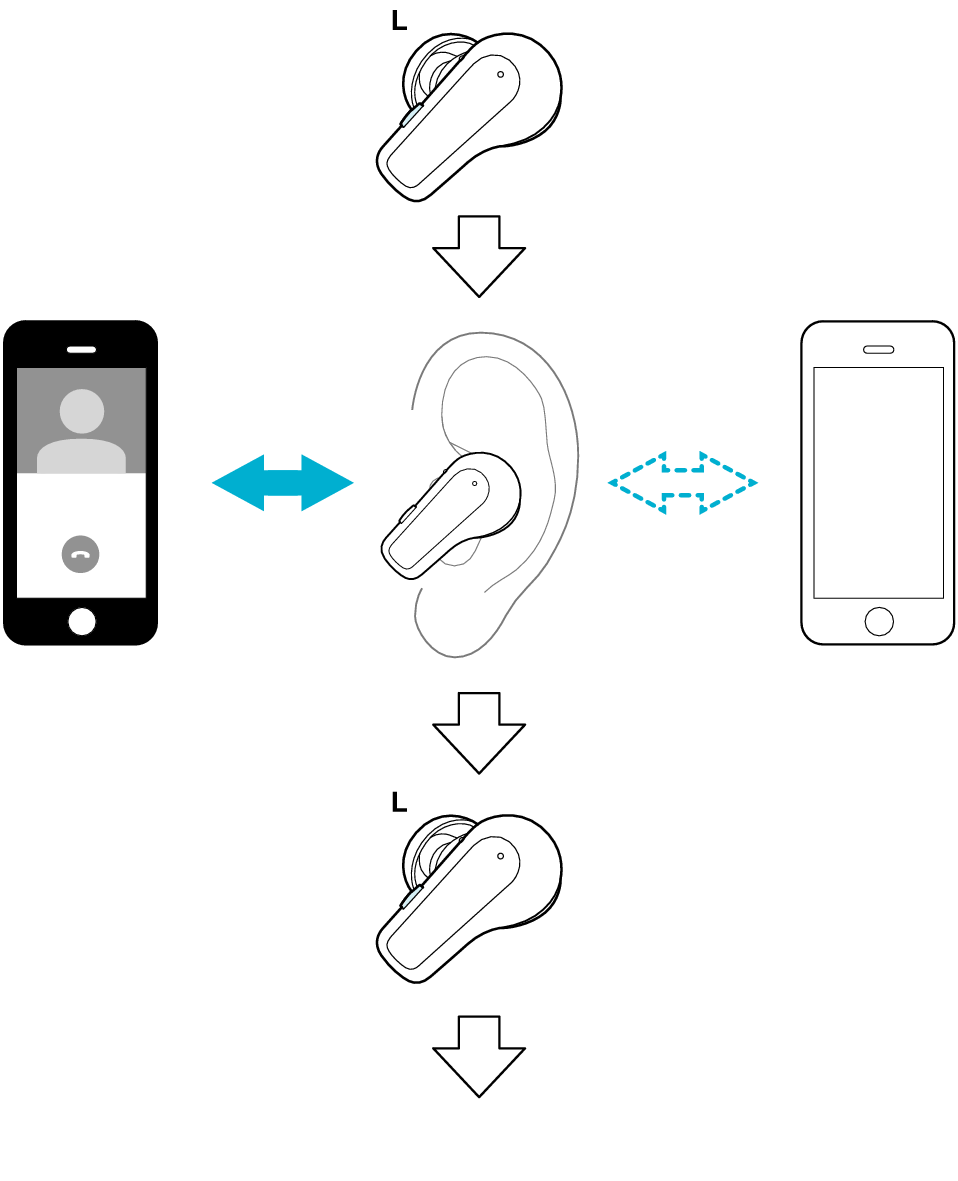
Press and hold the L button for 1 second
Continues call on the first Bluetooth device
Declines incoming call to the second Bluetooth device
In a Call
To end the call with the first device, press and hold the L button for 1 second.
Ends call
If the Bluetooth device is a computer, operate the computer to answer or end a call.
During multipoint connection, operating the remote control of the earphones controls the operation of the Bluetooth device that is currently playing music or in a call. It does not control the operation of the other device.
If you are not playing music or in a call on both Bluetooth devices, operating the remote control controls the operation of one of the Bluetooth devices but not the other. You cannot select which Bluetooth device to control in this case. If you want to do so, play back music or make a call on the Bluetooth device you want to use.
If you are only using one side of the earphone, you can also perform the same operation using the side that is in use.
Other operations of the multipoint function
Press the L button once to pause music playback on the first Bluetooth device. Operate the second Bluetooth device to play back music.
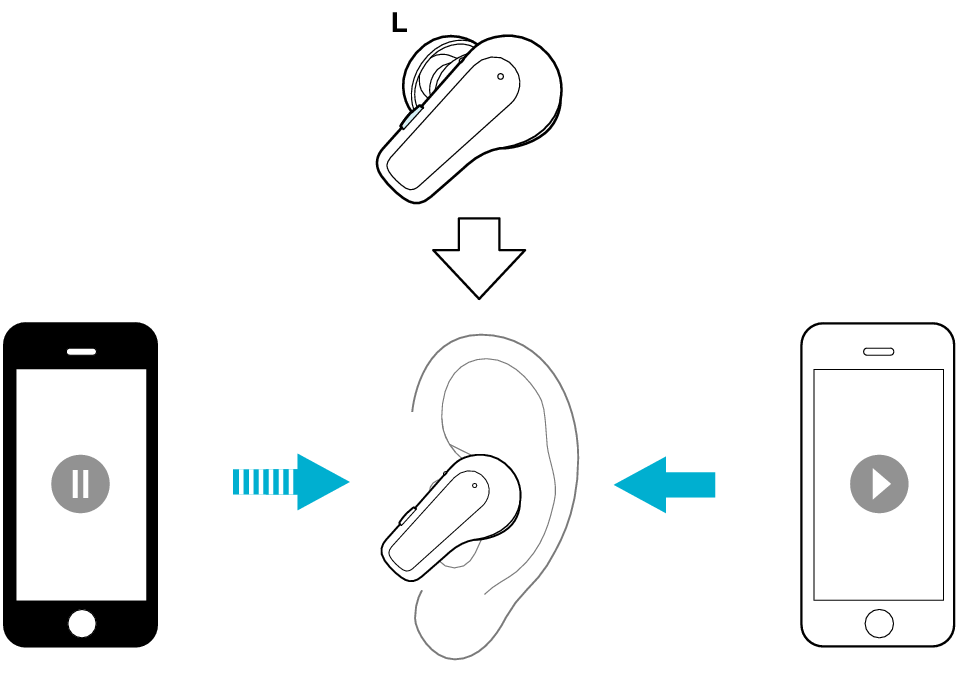
Press the L button once
Pause music playback on the first Bluetooth device
Operate the second Bluetooth device to play back music
Pause
Play