
Unable to connect using the multipoint (connect the second device)
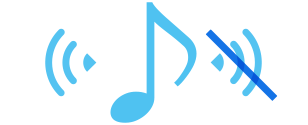
*Multipoint is a function to answer incoming calls from two devices. You cannot connect 3 or more devices at once.
First, check whether the first device is properly connected.
With both this unit and the device turned on, check that the first device is properly connected.
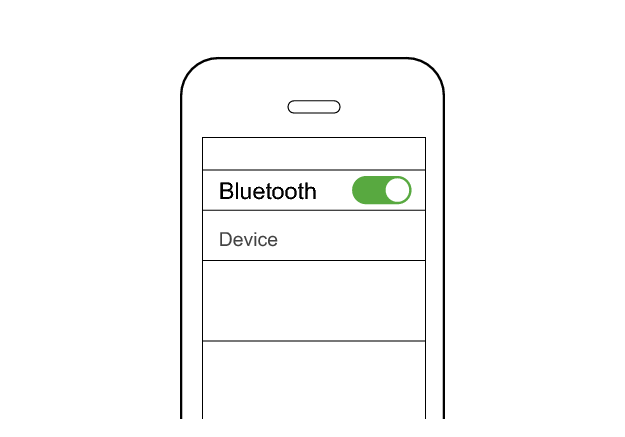
First Device
KENWOOD GLASS Core Pro
Connected already
Select the state after checking
Connect to the second device.
Follow the steps below to check whether connection can be established.
Connecting to the second device
-
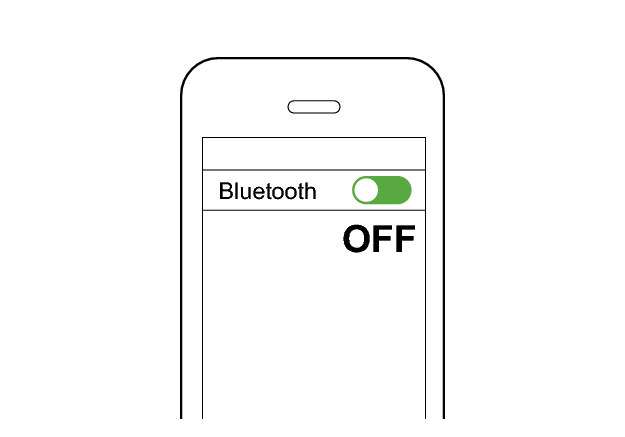
Set the Bluetooth setting of the first device to “OFF”.
-
Place the earphones in the charging case.
-
Take out both L and R earphones from the charging case and wear them in your ears.
-
Press and hold the button on the L or R earphone for 5 seconds.
-
Pair the System with the second BLUETOOTH device.
-
Set the Bluetooth setting of the first device to “On”. If it is not reconnected automatically, select this earphone unit again.
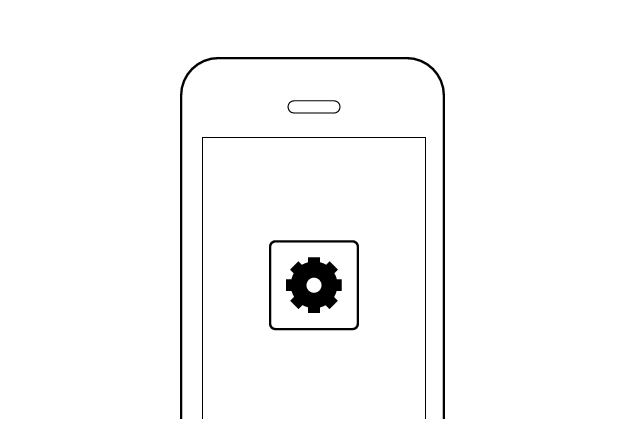
First Device
The indicators for the earphones light up.
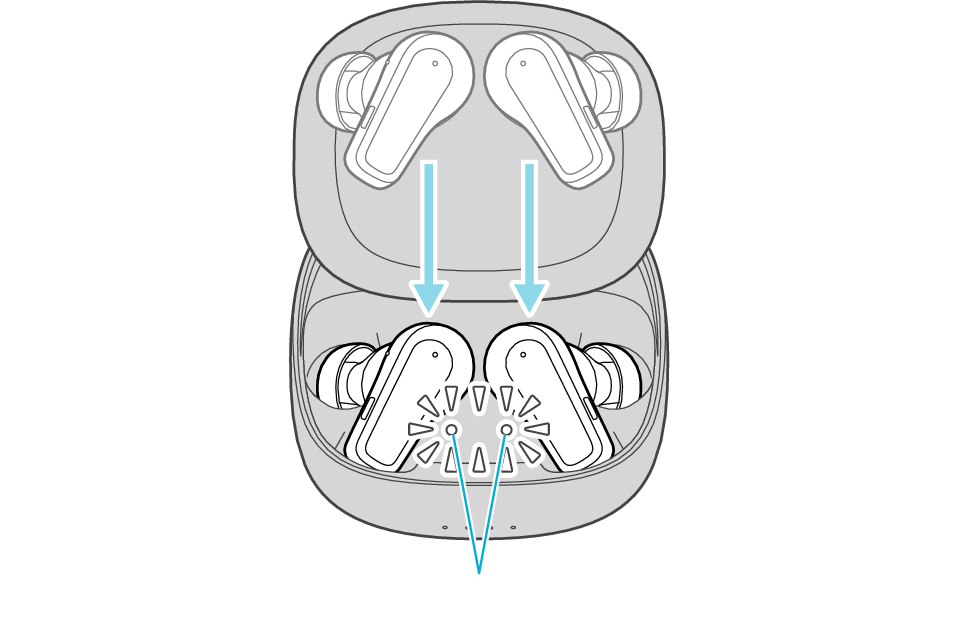
Indicators for the earphones
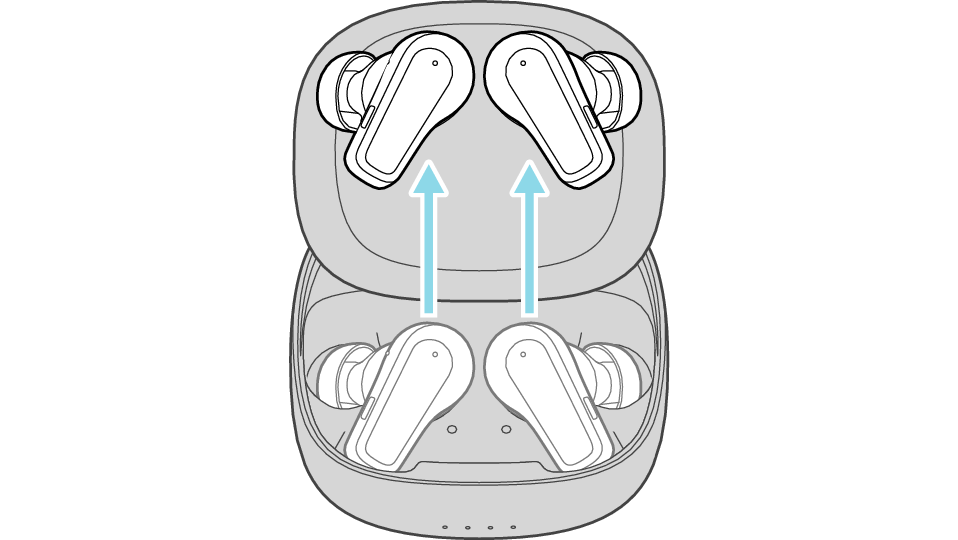
When you hear a “beep beep” sound after 1 second and “beep beep beep” sound after 5 seconds, release your finger from the button.
You will hear a notification “Pairing” via the audio guidance.
If the earphones are currently connected to a device, connection with that device will be disconnected at this time.
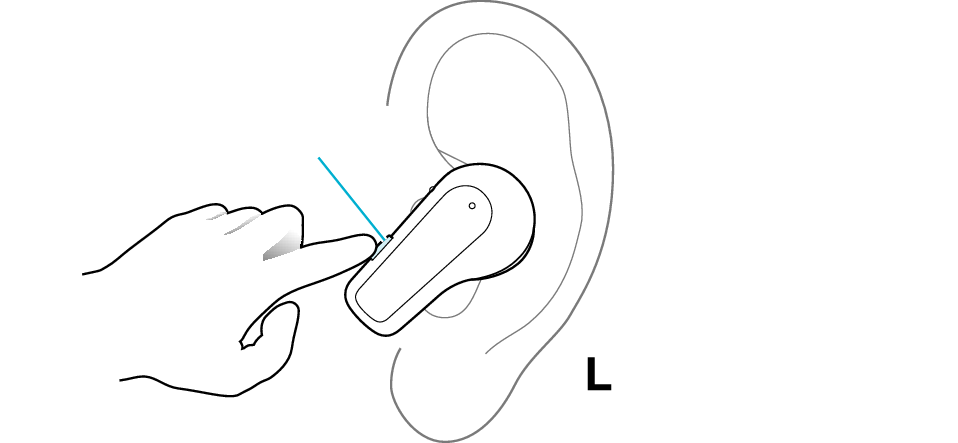
Button
The L earphone is used in the illustration.
If a pop-up display appears on your Android device, perform connection by following the instructions on the display.
In other cases, try the steps below.
Turn on the BLUETOOTH function on the BLUETOOTH device, and then select this unit from the device list.
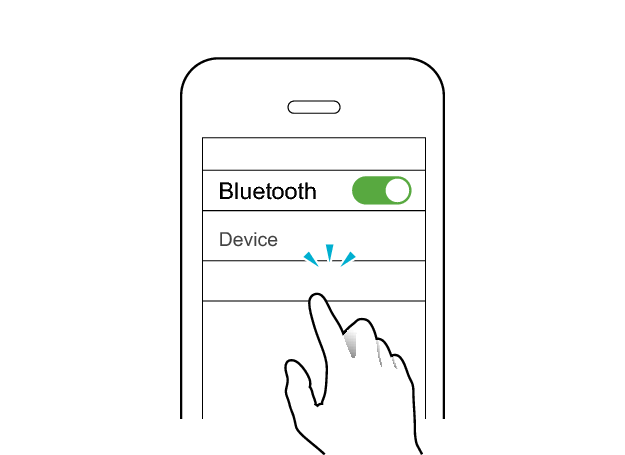
Second Device
KENWOOD GLASS Core Pro
Check the screen on the Bluetooth device to confirm whether connection is successful.
When connection is established, you will hear an audio guidance notification “Device One Connected” through the earphones.
Once connection has been established, the earphones can be used for listening to music.
First Device
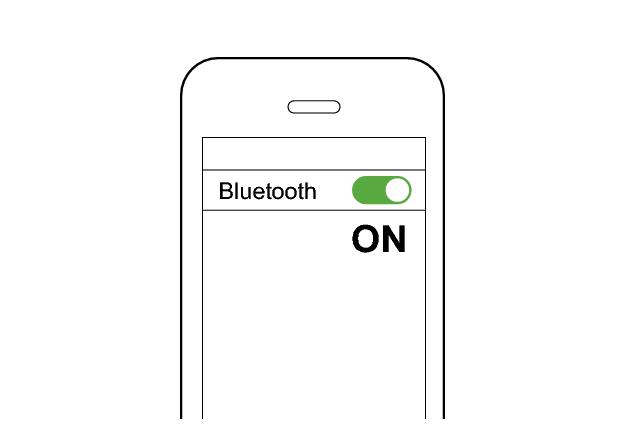
When the connection with two devices is complete, you will hear “Device Two Connected”.
Check whether “Connected already” is displayed on both devices.
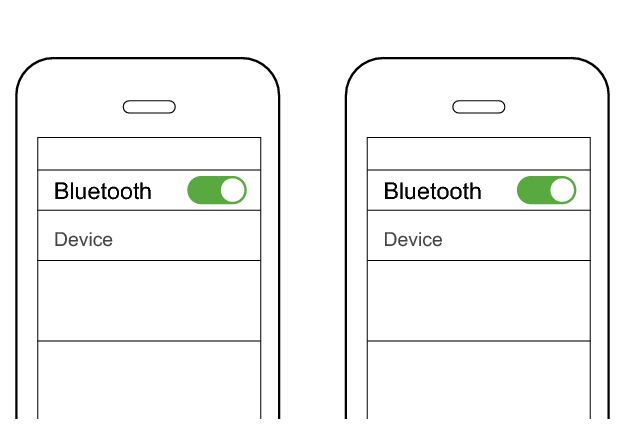
First Device
Second Device
KENWOOD GLASS Core Pro
KENWOOD GLASS Core Pro
Connected already
Connected already
Select the state after checking
Connection is complete.
Thank you for using Troubleshooting Guide.
Perform the operations again from the start.
Check here to repeat the operations >>
If you are unable to connect even after repeating the operations, follow the steps below to check whether connection can be established.
Initializing
First of all, go to the Bluetooth settings of the device to be connected and delete the information of this unit that is registered on it.
Depending on the device to be connected, multiple registration information of the System may be displayed as shown below.
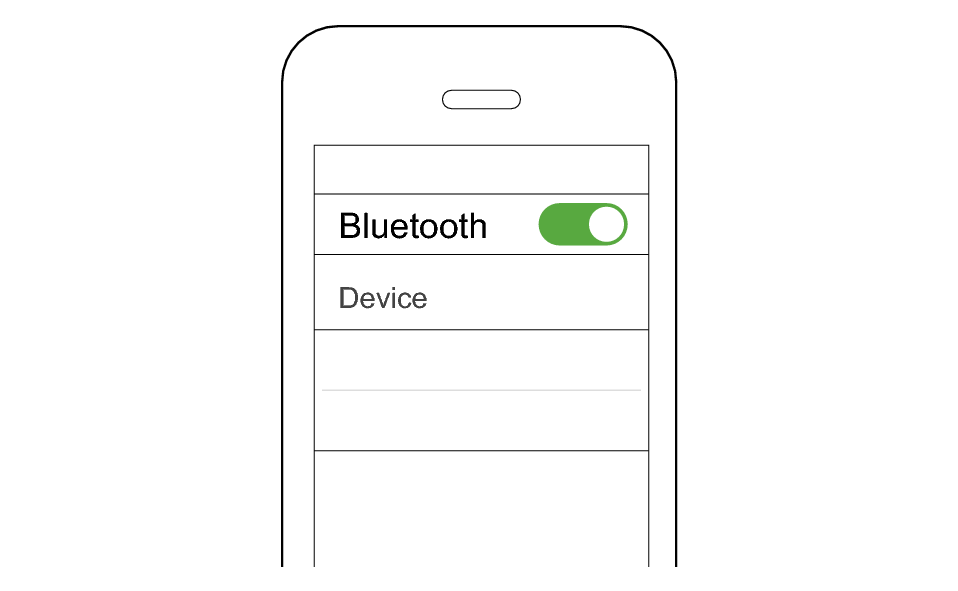
KENWOOD GLASS Core Pro
GLASS Core Pro-APP
In this case, delete all the registration information of the System.
Charge the charging case beforehand.
Remove the earphones once if they are inserted into the charging case.
Follow the steps below to initialize the settings of both the L and R earphones at the same time.
-
Insert the earphones into the charging case
-
When the indicators for the earphones are lit, press the L and R buttons at the same time six times in a row
-
While the indicators for the earphones are flashing, press and hold the L and R buttons at the same time for about one second
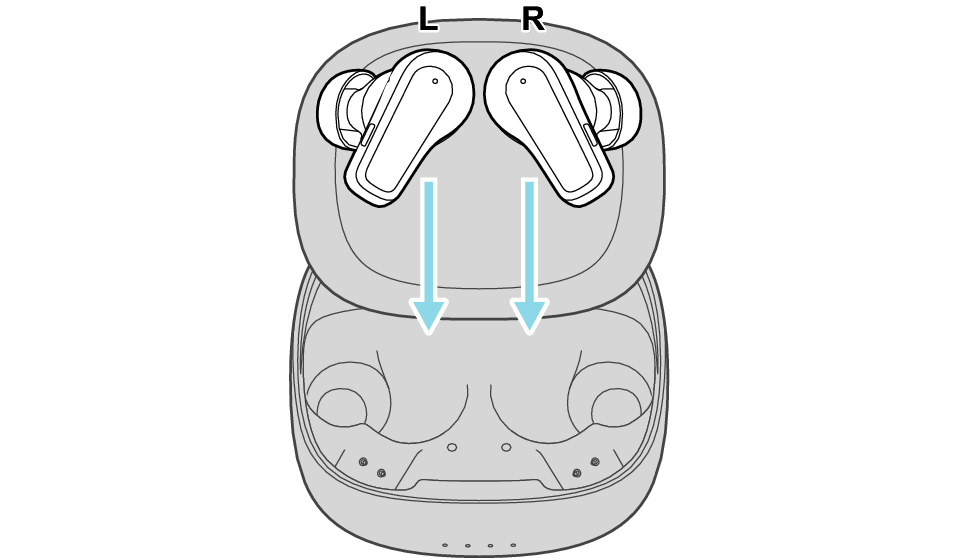
After a few seconds, the indicators for the earphones and charging case will light up.
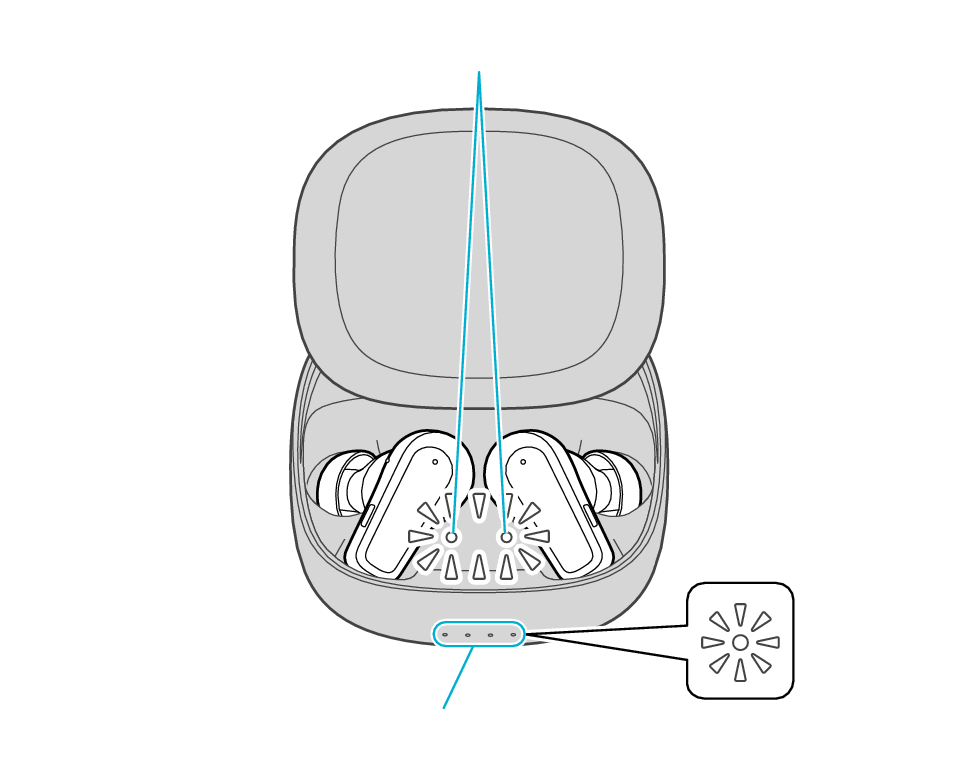
Indicators for the earphones
Indicators for the charging case
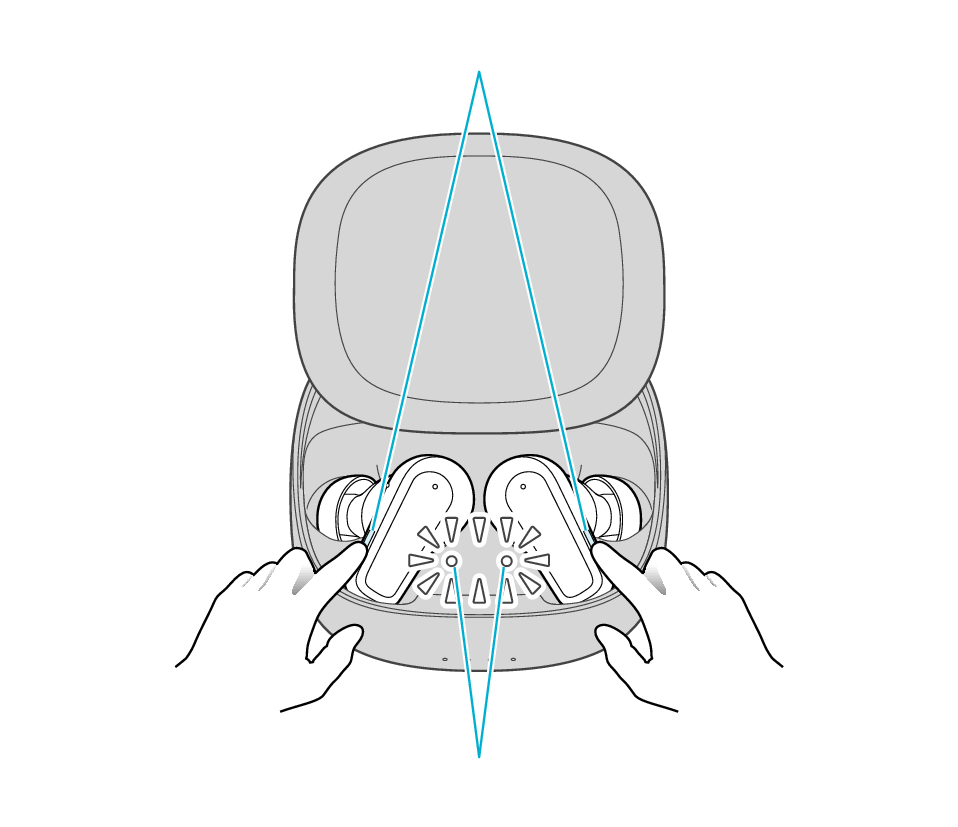
Button
Indicators for the earphones
The indicators for the earphones start to flash quickly.
If the indicators do not flash quickly, remove both earphones from the charging case, and start over again from step 1.
The indicators for the earphones will stop flashing in 10 seconds. While the indicators are flashing, press and hold the buttons for about 1 second.
Button
Indicators for the earphones
The L and R earphones are automatically connected inside the charging case.
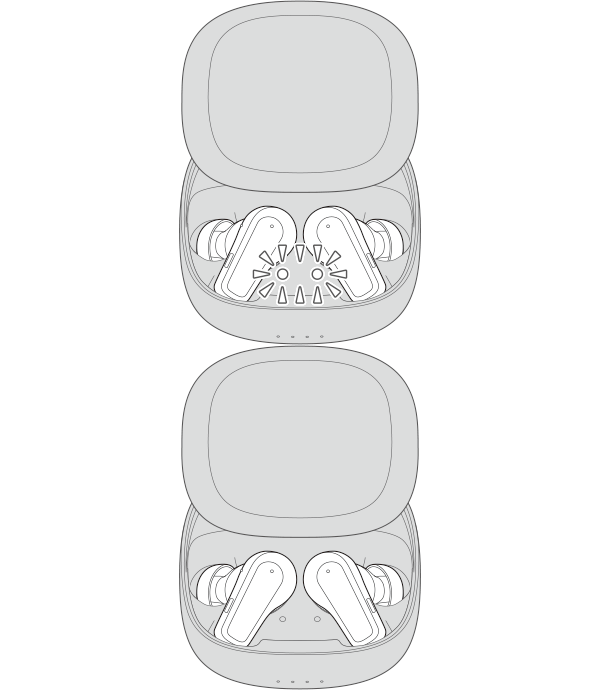
After initialization is complete, the L and R indicators for the earphones will flash twice slowly.
After initialization is complete, charging of the earphones will resume, and the indicators for the earphones will turn on or go off.
Connecting to the first device
-
Insert the earphones into the charging case
-
Remove both the L and R earphones
The indicators for the earphones light up.
Indicators for the earphones
If a pop-up display appears on your Android device, perform connection by following the instructions on the display.
In other cases, try the steps below.
Turn on the BLUETOOTH connection setting of the device and select this unit
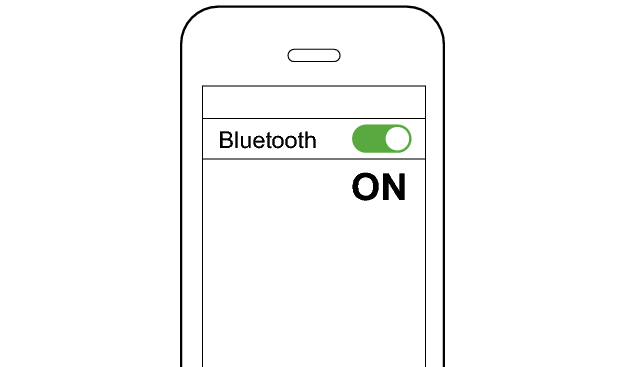
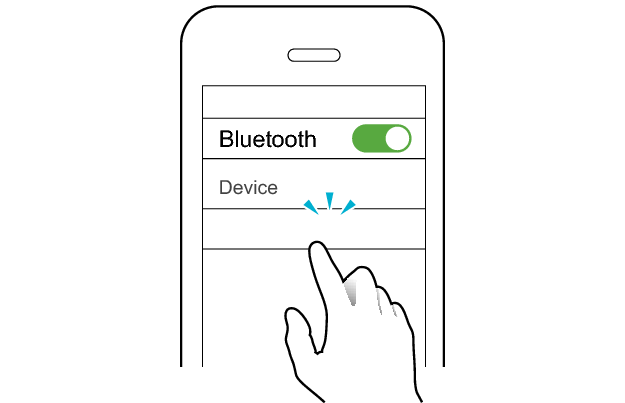
KENWOOD GLASS Core Pro
Check the screen on the Bluetooth device to confirm whether connection is successful.
When connection is established, you will hear an audio guidance notification “Device One Connected” through the earphones.
Once connection has been established, the earphones can be used for listening to music.
Connecting to the second device
-
Set the Bluetooth setting of the first device to “OFF”.
-
Place the earphones in the charging case.
-
Take out both L and R earphones from the charging case and wear them in your ears.
-
Press and hold the button on the L or R earphone for 5 seconds.
-
Pair the System with the second BLUETOOTH device.
-
Set the Bluetooth setting of the first device to “On”. If it is not reconnected automatically, select this earphone unit again.
First Device
The indicators for the earphones light up.
Indicators for the earphones
When you hear a “beep beep” sound after 1 second and “beep beep beep” sound after 5 seconds, release your finger from the button.
You will hear a notification “Pairing” via the audio guidance.
If the earphones are currently connected to a device, connection with that device will be disconnected at this time.
Button
The L earphone is used in the illustration.
If a pop-up display appears on your Android device, perform connection by following the instructions on the display.
In other cases, try the steps below.
Turn on the BLUETOOTH function on the BLUETOOTH device, and then select this unit from the device list.
Second Device
KENWOOD GLASS Core Pro
Check the screen on the Bluetooth device to confirm whether connection is successful.
When connection is established, you will hear an audio guidance notification “Device One Connected” through the earphones.
Once connection has been established, the earphones can be used for listening to music.
First Device
When the connection with two devices is complete, you will hear “Device Two Connected”.
Check whether “Connected already” is displayed on both devices.
First Device
Second Device
KENWOOD GLASS Core Pro
KENWOOD GLASS Core Pro
Connected already
Connected already