
Connecting this Unit and a Computer
This unit enables you to connect to a PC with a built-in Bluetooth feature for listening to music or the audio of videos or meetings.
Connection cannot be established if the “Bluetooth” menu is not displayed on the “Device Settings Screen” as shown in the steps below.
-
Disconnect from other devices
-
Connect this unit and a computer
If this unit is already connected via Bluetooth with other devices such as smartphone, turn off the Bluetooth feature for the said device in advance.
Pairing this Unit and a Computer for the First Time (Registering a Device)
Insert both earphones into the charging case. Check that the indicators for the earphones light up. And then take out both L and R earphones from the charging case and wear them in your ears. You will hear “Pairing”.
Perform the steps below for each OS of the PC in use.
Windows 11
-
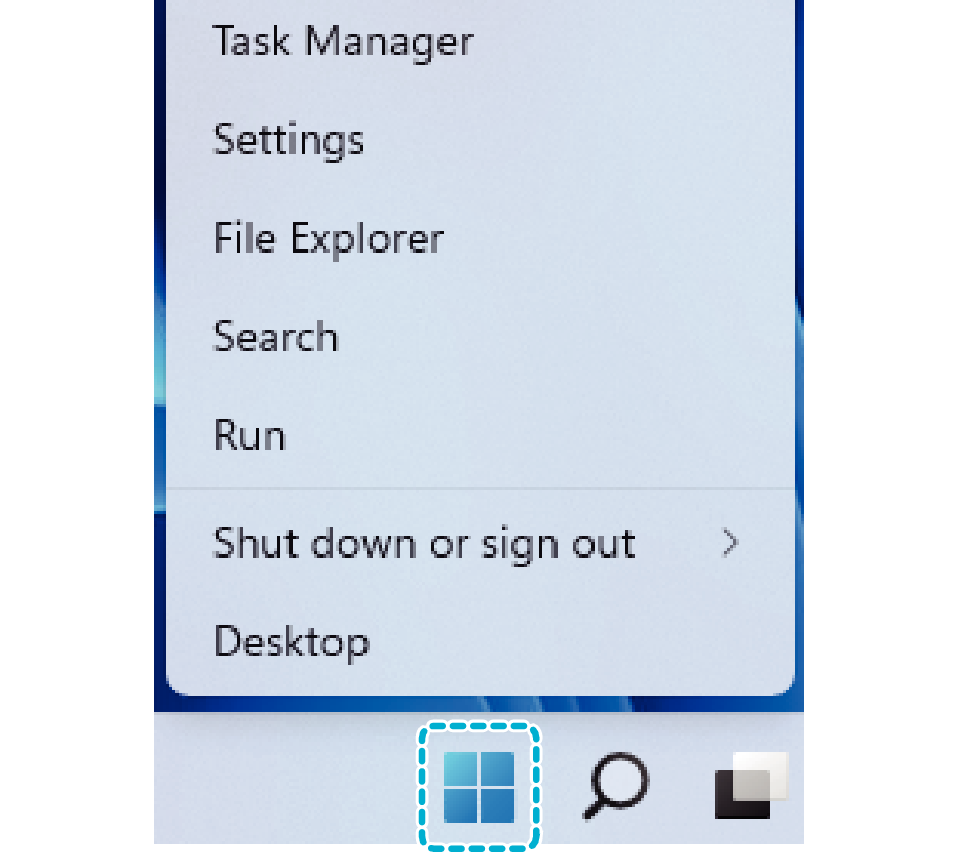
Right-click the [Start] button
-
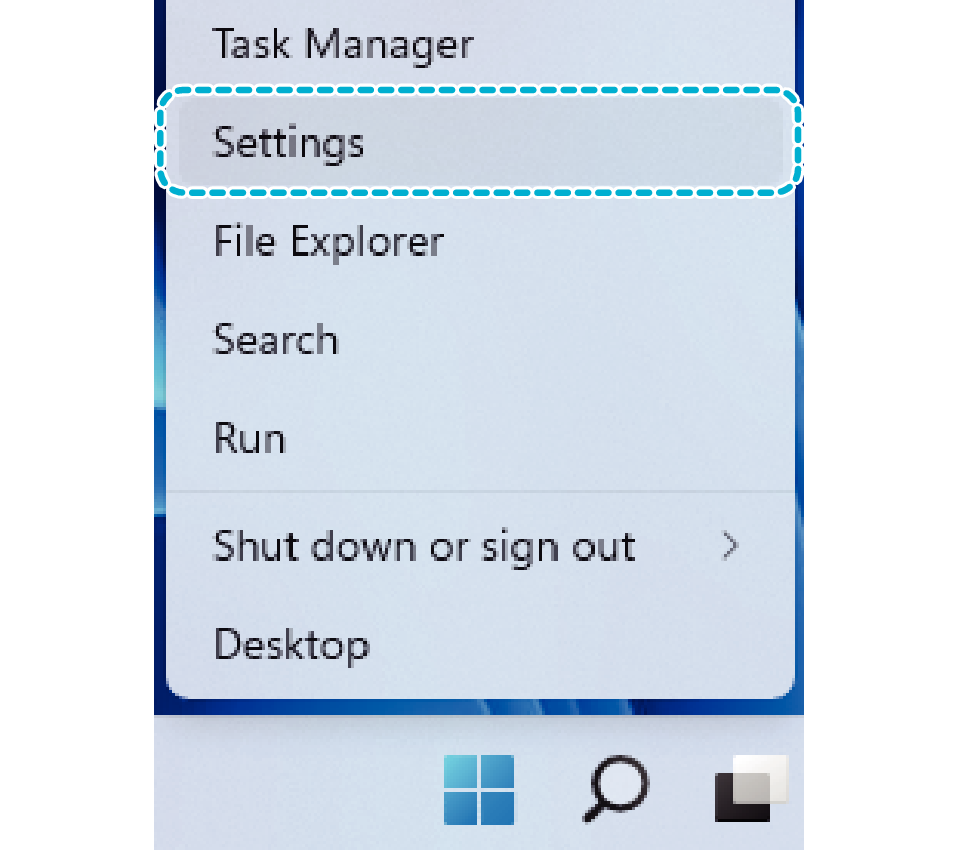
Click [Settings]
-
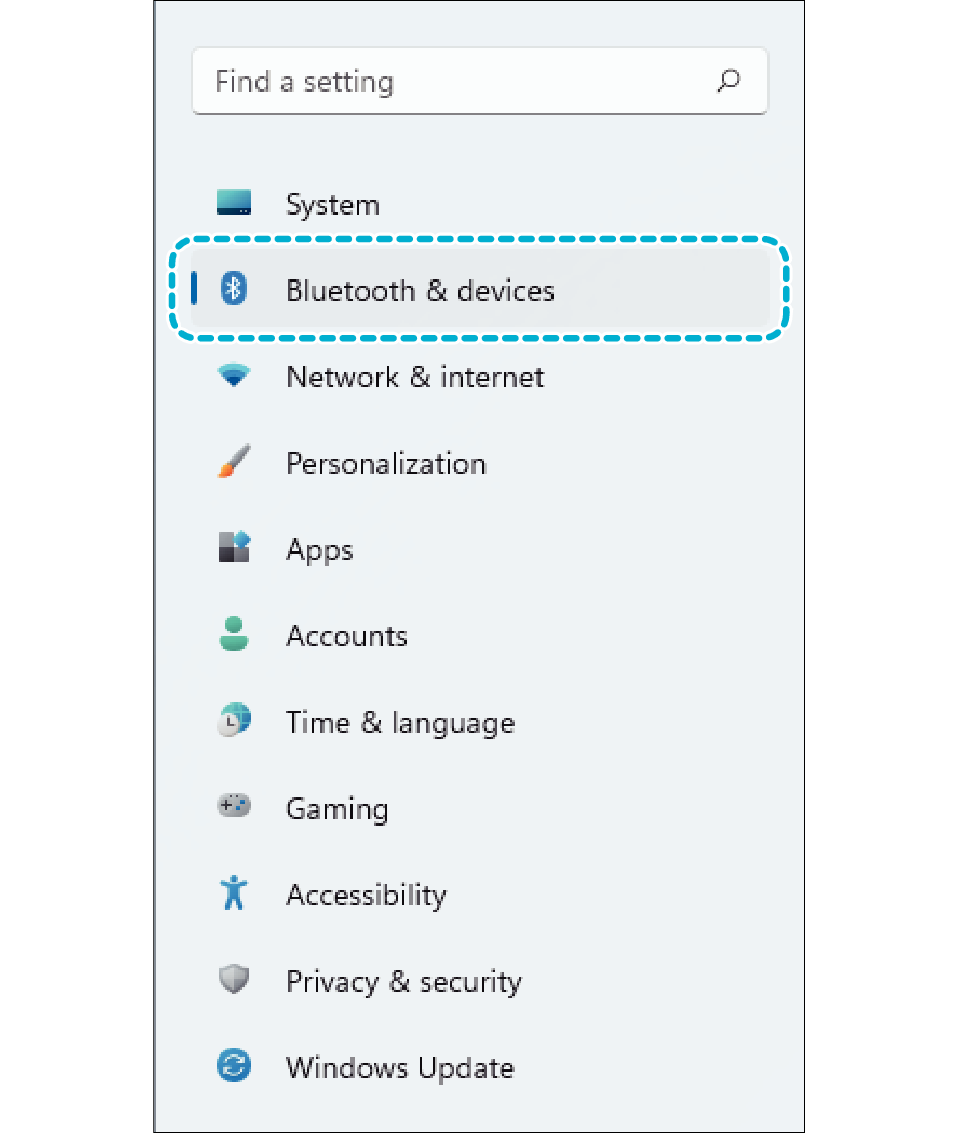
Click [Bluetooth & devices] in the “Settings” screen
-
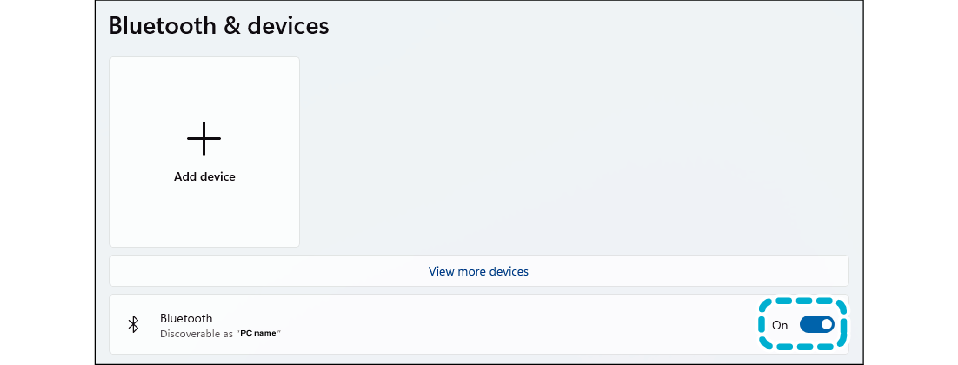
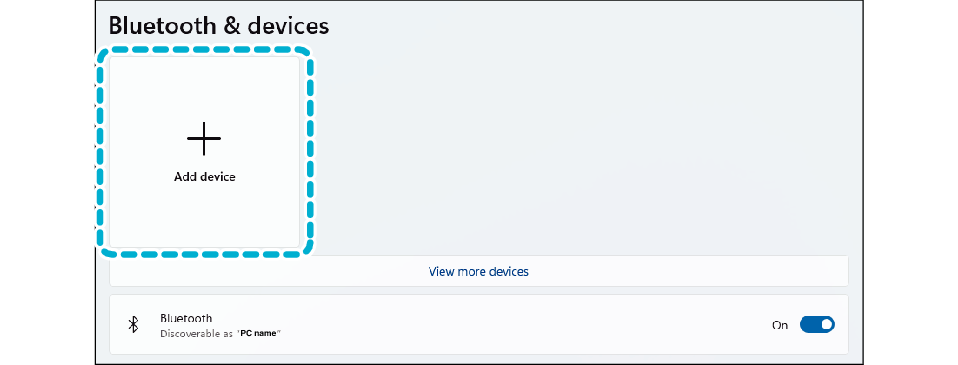
Set “Bluetooth” to [On]
-
Click [Add device]
-
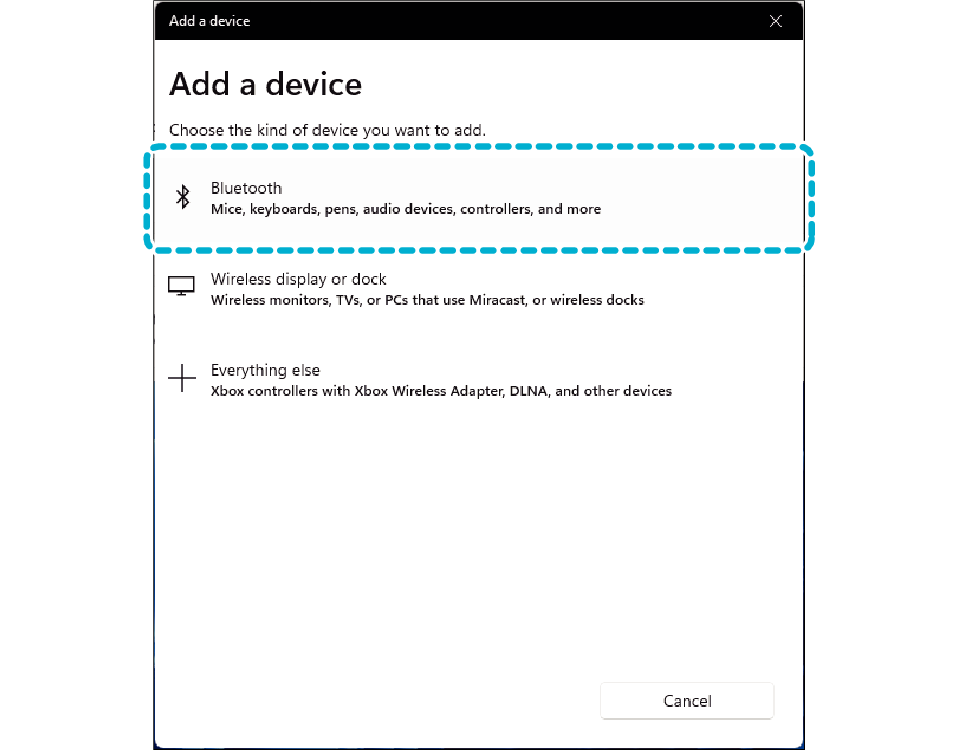
Select [Bluetooth] in the “Add a device” screen
-
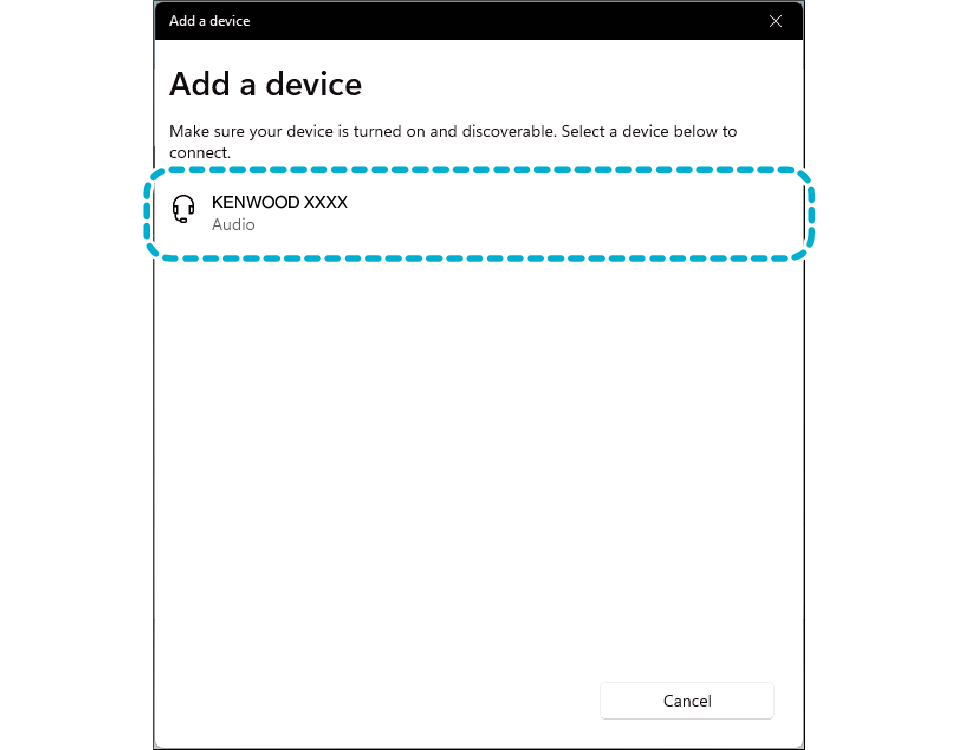
Once [KENWOOD XXXX] (model number of the unit in use), select it
NOTE
You will see the model number of the unit in use displayed in the “KENWOOD XXXX” area.
The screenshot is intended for illustration purposes. The display may vary depending on the PC in use.
macOS
-
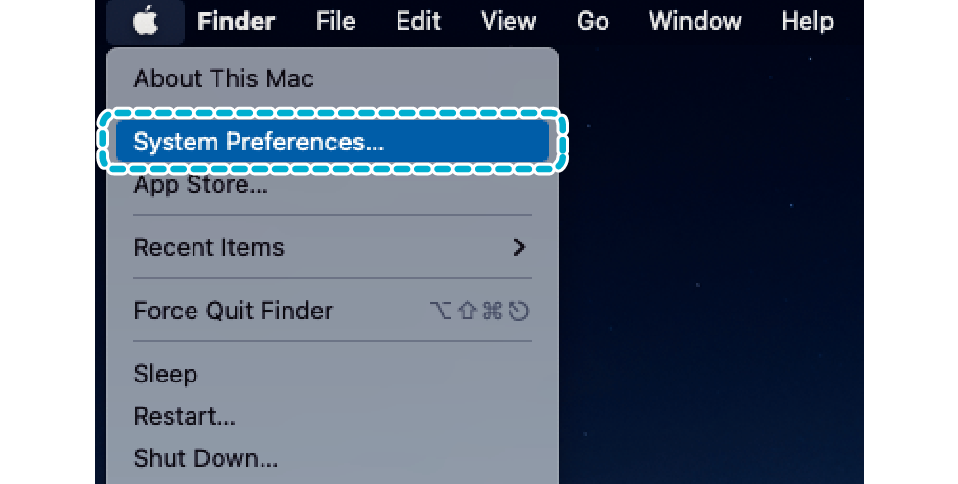
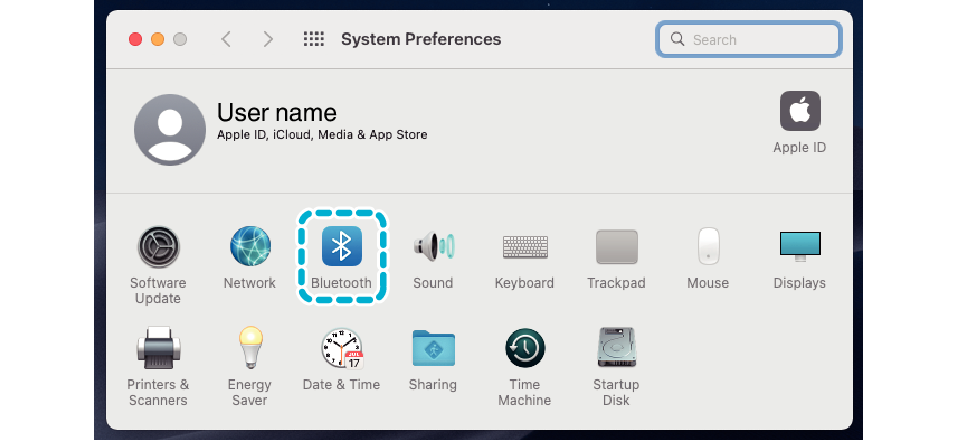
Go to the Apple Menu and click [System Preferences]
-
Click [Bluetooth] in the “System Preferences” screen
-
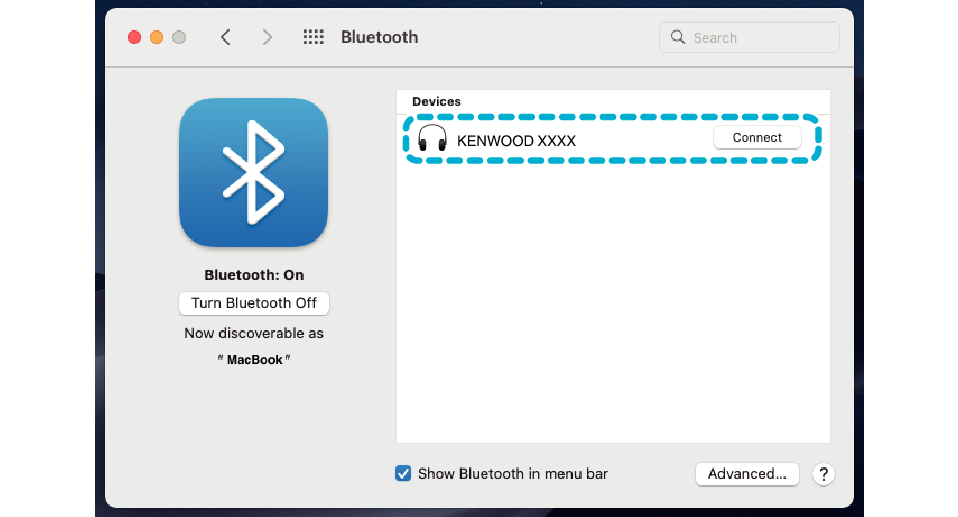
Once [KENWOOD XXXX] (model number of the unit in use) appears in the “Devices” list, select it
NOTE
You will see the model number of the unit in use displayed in the “KENWOOD XXXX” area.
The screenshot is intended for illustration purposes. The display may vary depending on the PC in use.
Reconnecting with a Previously-connected PC
Turn on the Bluetooth setting on the PC to be connected, followed by removing both earphones from the charging case. This earphones will automatically power on and reconnect with the PC that was previously connected.