
> When in Trouble > Initializing
Initializing
If no sound is heard from one side of the earphones or the earphones cannot be connected to your BLUETOOTH device, initializing the earphones may solve the problem.
Information of all the paired devices will be deleted (initialized). Perform pairing again from the start.
Start by deleting the registration information of the System from the BLUETOOTH setting on the BLUETOOTH device.
Depending on the device to be connected, multiple registration information of the System may be displayed as shown below.
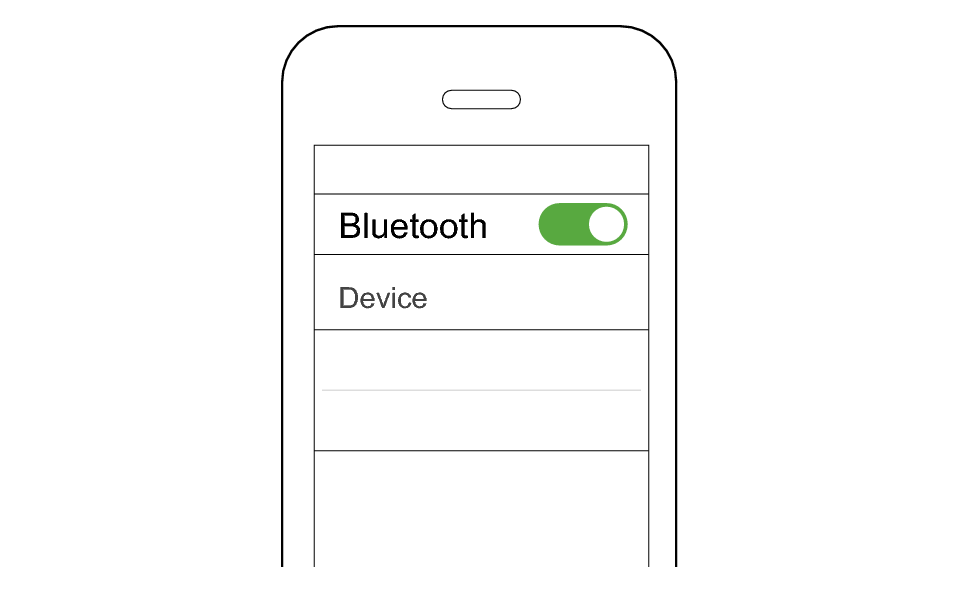
KENWOOD GLASS Core
GLASS Core-APP
In this case, delete all the registration information of the System.
Charge the charging case beforehand.
Remove the earphones once if they are inserted into the charging case.
Follow the steps below to initialize the settings of both the L and R earphones.
Initialize the L earphone.
-
1Insert the L earphone into the charging case.
-
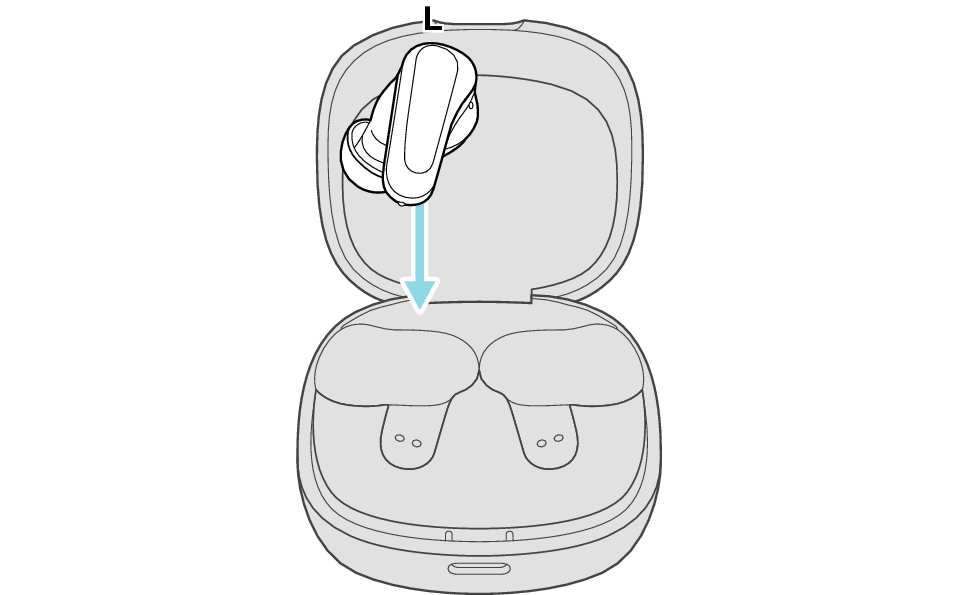
After few seconds, the indicator on the charging case lights up.
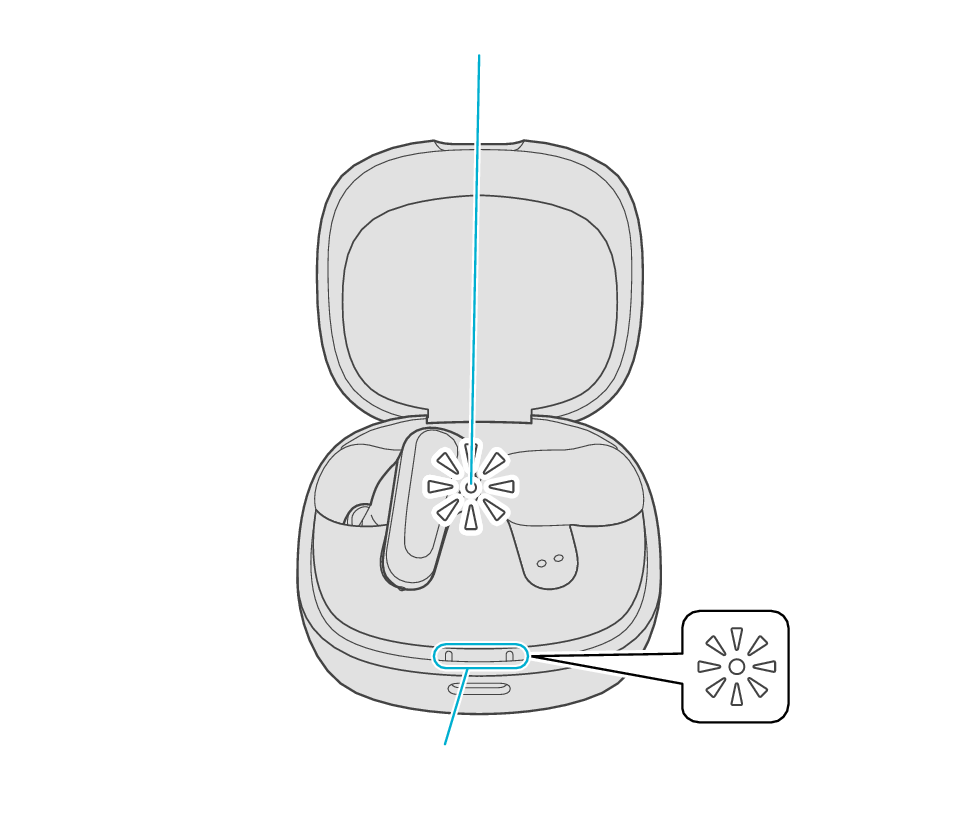
Indicator
Indicators
-
2When the indicator for L earphone is lighting up, press and hold the L touch sensor area for about 10 seconds.
-
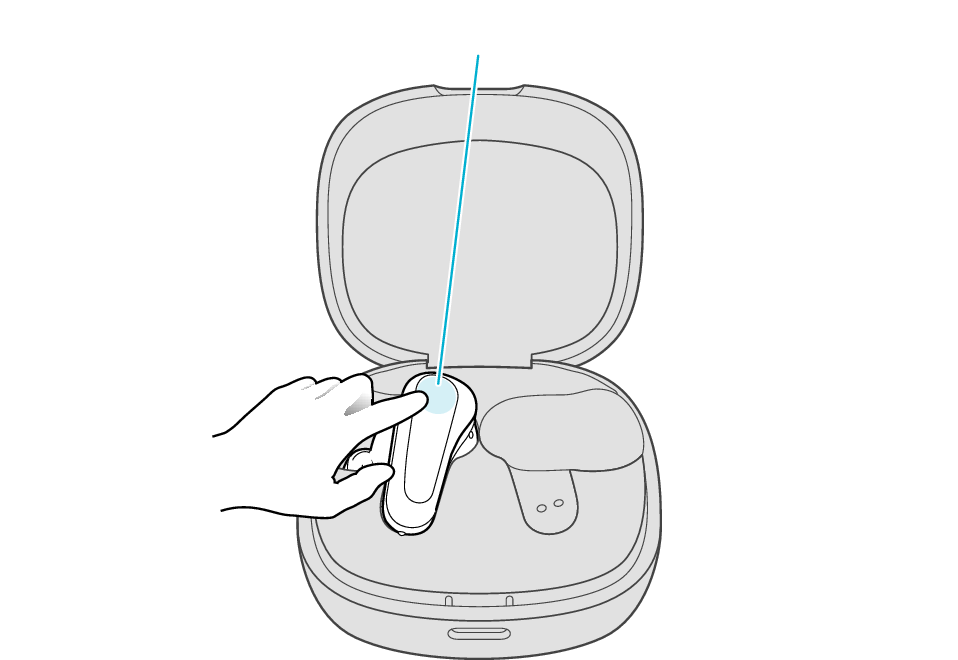
Touch sensor area
Release your finger after the L indicator flashes quickly.
If the indicator does not flash, start over from step 1.
-
3While the indicator is flashing, tapping the touch sensor area twice quickly, initializes the settings.
-
Touch sensor area
The indicator will stop flashing after 5 seconds. Tap it twice quickly while it is still flashing.
After initialization is complete, the L indicator will flash twice slowly.
If initialization is not successful, start over from step 1.

Initialize the R earphone.
-
4Insert the R earphone into the charging case.
-
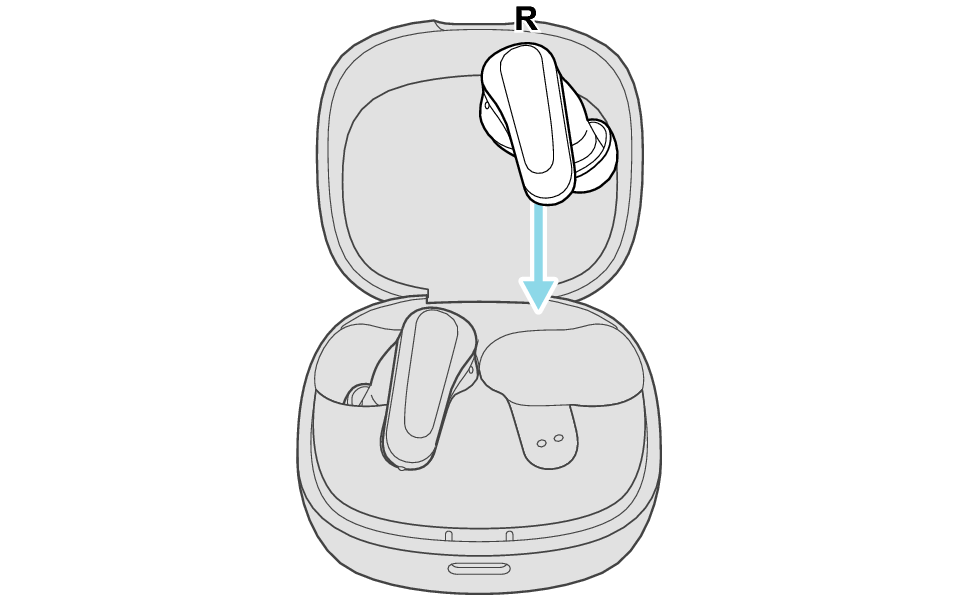
After few seconds, the indicator on the charging case lights up.
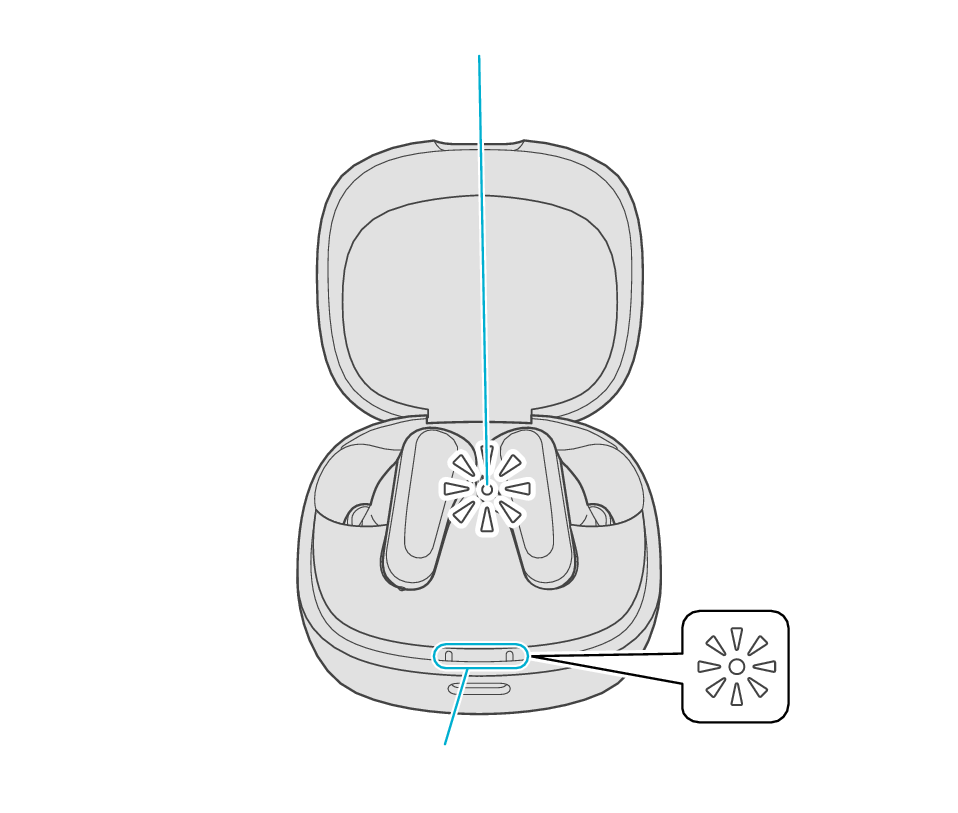
Indicator
Indicators
-
5When the indicator for R earphone is lightning up, press and hold the R touch sensor area for about 10 seconds.
-
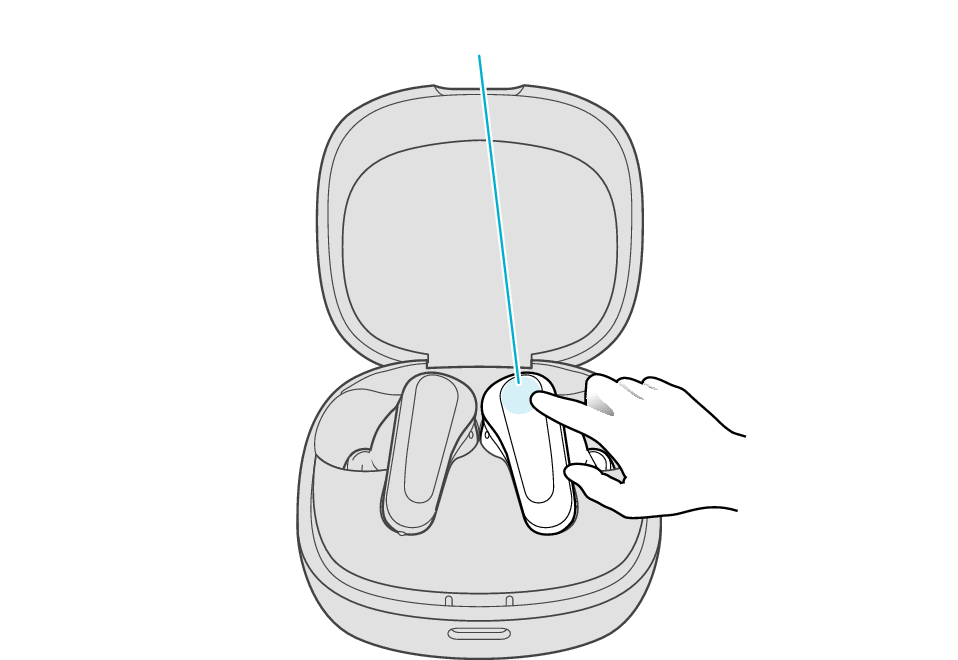
Touch sensor area
Release your finger after the R indicator flashes quickly.
If the indicator does not flash, start over from step 4.
-
6While the indicator is flashing, tapping the touch sensor area twice quickly, initializes the settings.
-
Touch sensor area
The indicator will stop flashing after 5 seconds. Tap it twice quickly while it is still flashing.
After initialization is complete, the R indicator will flash twice slowly.
If initialization is not successful, start over from step 4.
Connect the L earphone with the R earphone.
-
7Take out both the L and R earphones and place them side by side.
-
Be careful not to touch the touch sensor area when taking them out.
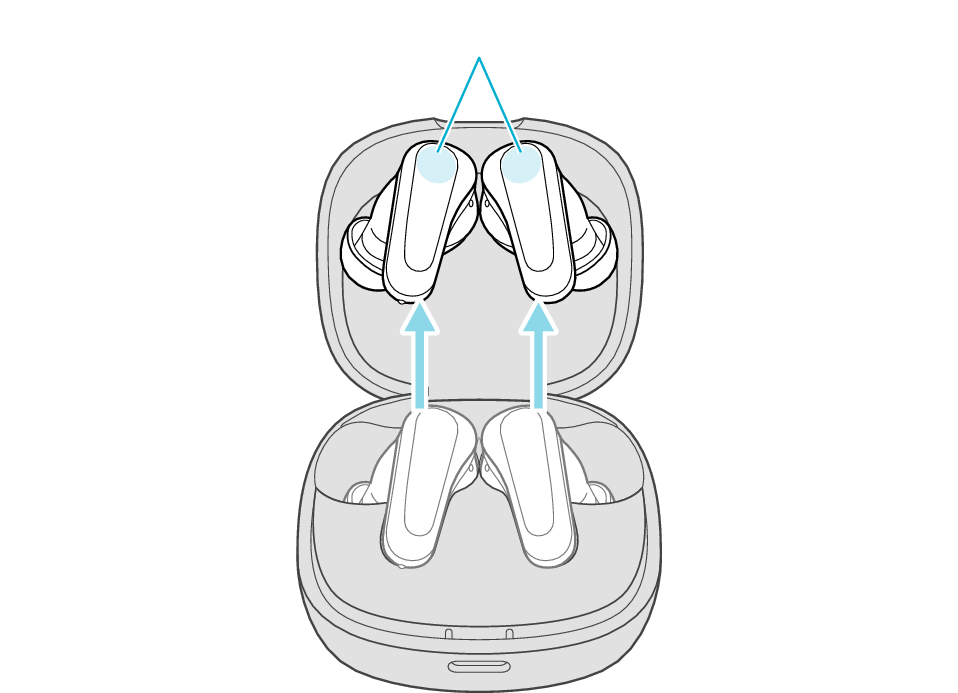
Touch sensor area
One indicator flashes twice every 5 seconds and the other indicator quickly flashes repeatedly.
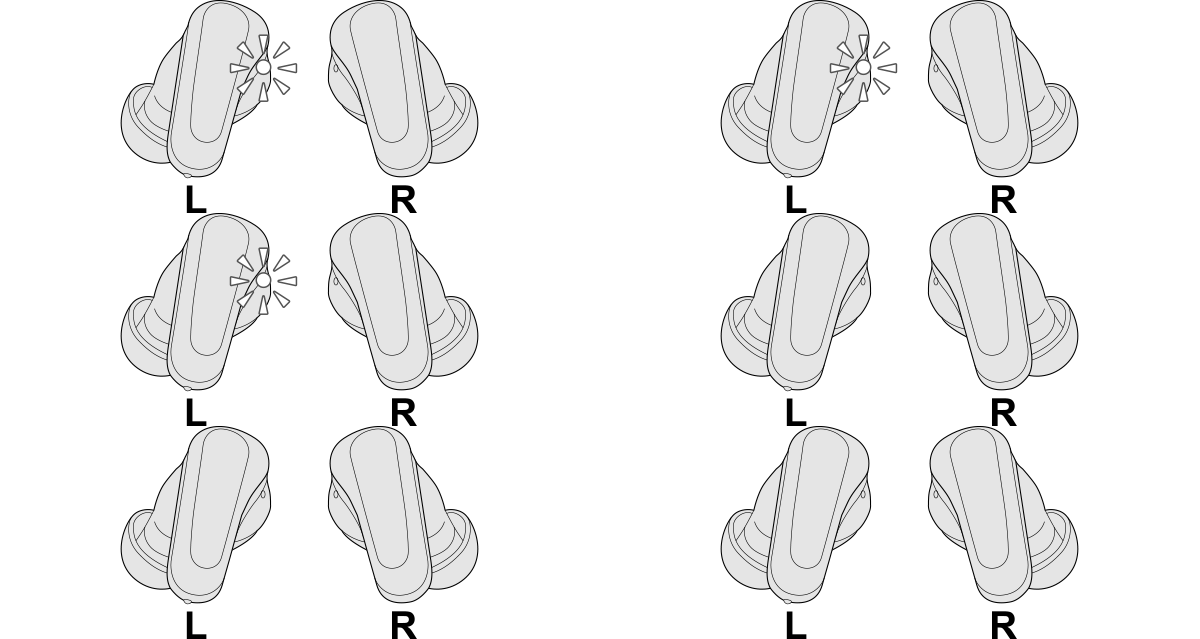
Initialization is now complete.
If one indicator does not flash twice every 5 seconds, this means the initialization has not been completed properly. Start the initialization again from step 1.
Information of all paired devices has been deleted. Pair the respective Bluetooth devices (device registration) again. Pairing for the First Time