The volume is low or the sound is unpleasant

If the volume is low or the sound quality seems abnormal, following the steps below may solve the problem.
Follow the steps to check whether there is any abnormality with the sound output.
Adjusting the position of the earpieces may improve the issue.
Adjusting the Earpiece Position
-
Flip the earpieces as shown in the illustration below, and align the notch on the earpieces and convex shape on the earphones.
-
Flip back the earpieces as illustrated in the diagram.
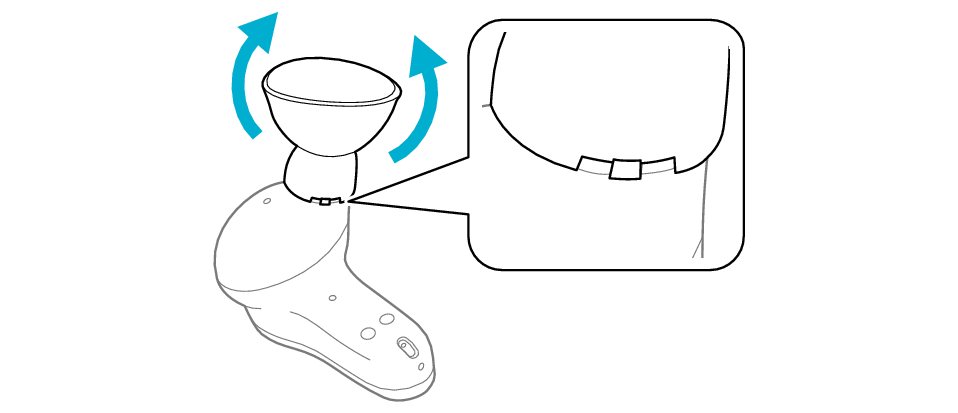

Adjusting the position of the earphone may improve the symptom.
Adjusting the Earphone Position
Rotate the earphones without touching the touch sensor area and adjust them to the angle that fits best.
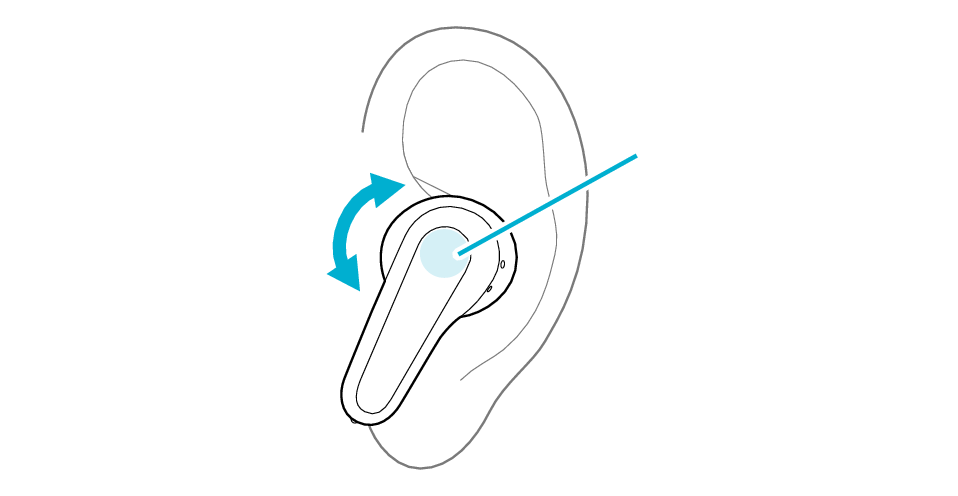
Touch sensor area
Select the state after checking
Thank you for using Troubleshooting Guide.
When the Touch & Talk function is set to on, the volume is reduced.
Switch off the Touch & Talk function if it is on.
Setting the Touch & Talk function function
Touch the touch sensor area of the R earphone for about 1 second, and release your finger when you hear a beep sound.
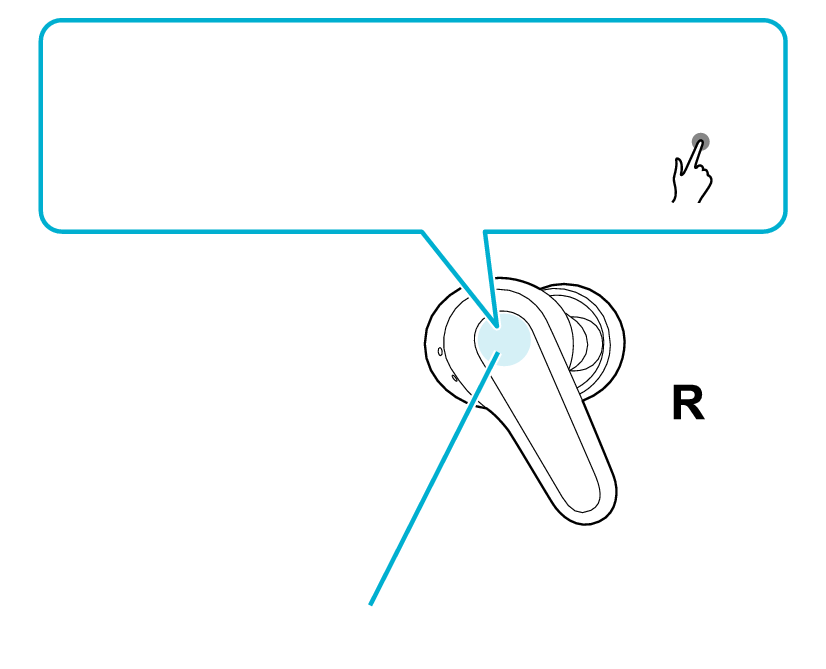
Turn off the Touch & Talk function
1second
Touch sensor area
Each time you touch for about one second and a beep sounds, the Touch & Talk function switches on or off.
Select the state after checking
Thank you for using Troubleshooting Guide.
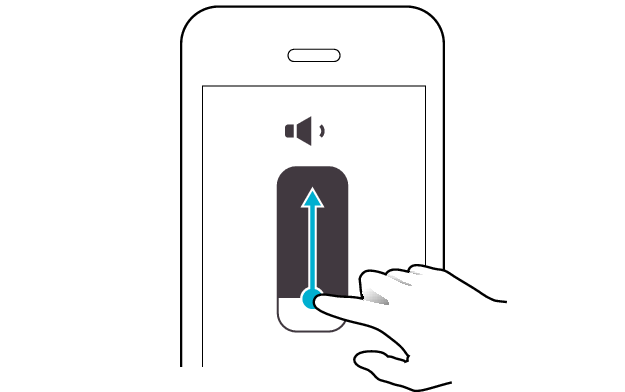
The volume on the earphones or the connected device may have decreased.
In this case, operate the earphones or connected device to increase the volume.
Increasing the Volume of the Earphones
Tap the touch sensor area on the L side of the earphones quickly for 3 times
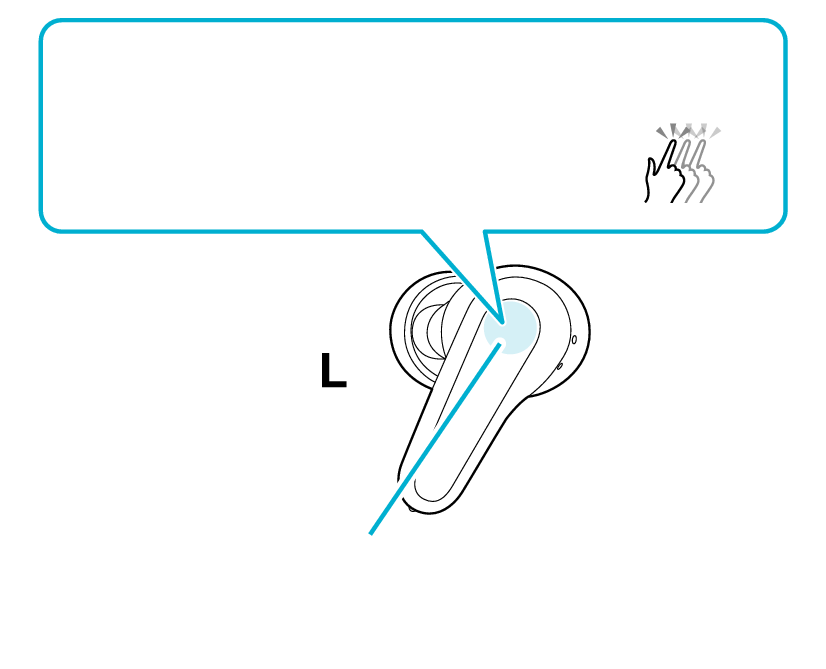
Volume up
3x
Touch sensor area
Increasing the Volume of the Connected Device
Adjust the volume