
Unable to turn on the power

The following describes possible solutions when the earphones do not power on.
Follow the steps below to check whether the problem can be solved.
The earphones may be out of battery.
Charge the earphones followed by checking whether the power can be turned on properly.
Charge the charging case and earphones
-
Charge the charging case
-
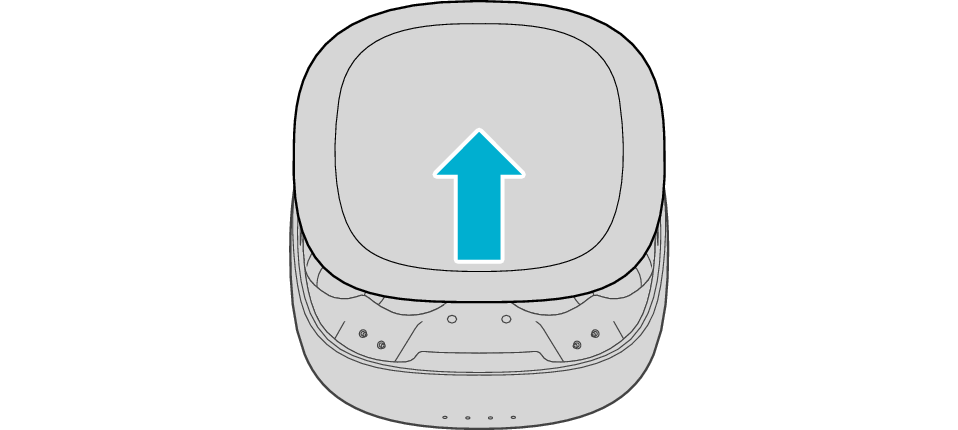
Open the charging case
-
Insert the earphones into the charging case
-
Close the charging case
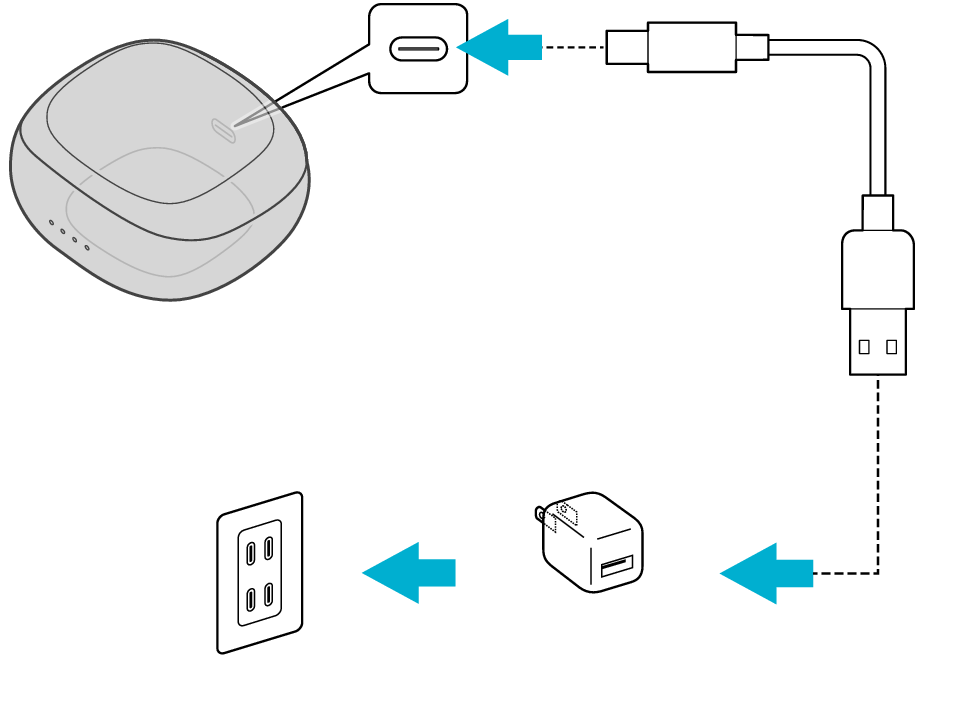
5V TYPE
Slide the lid of the charging case to open it.
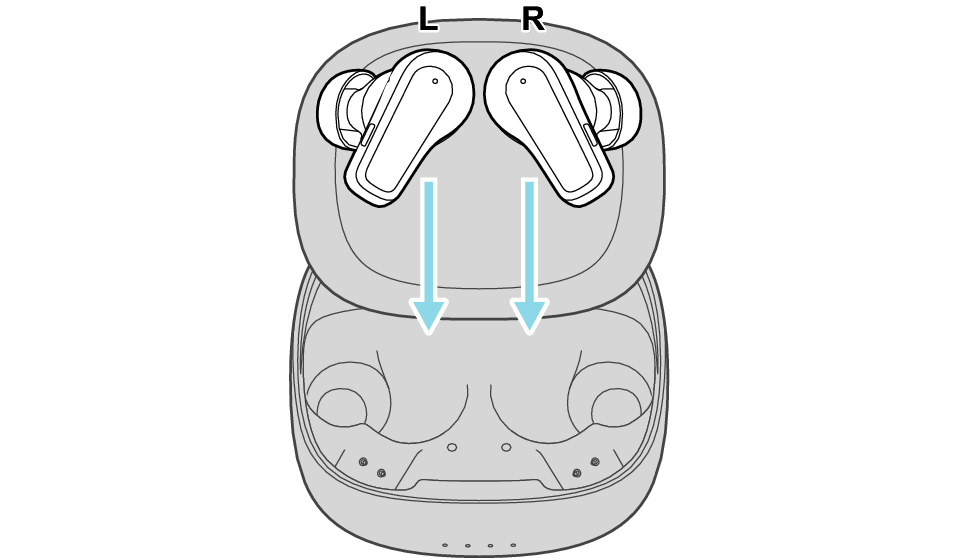
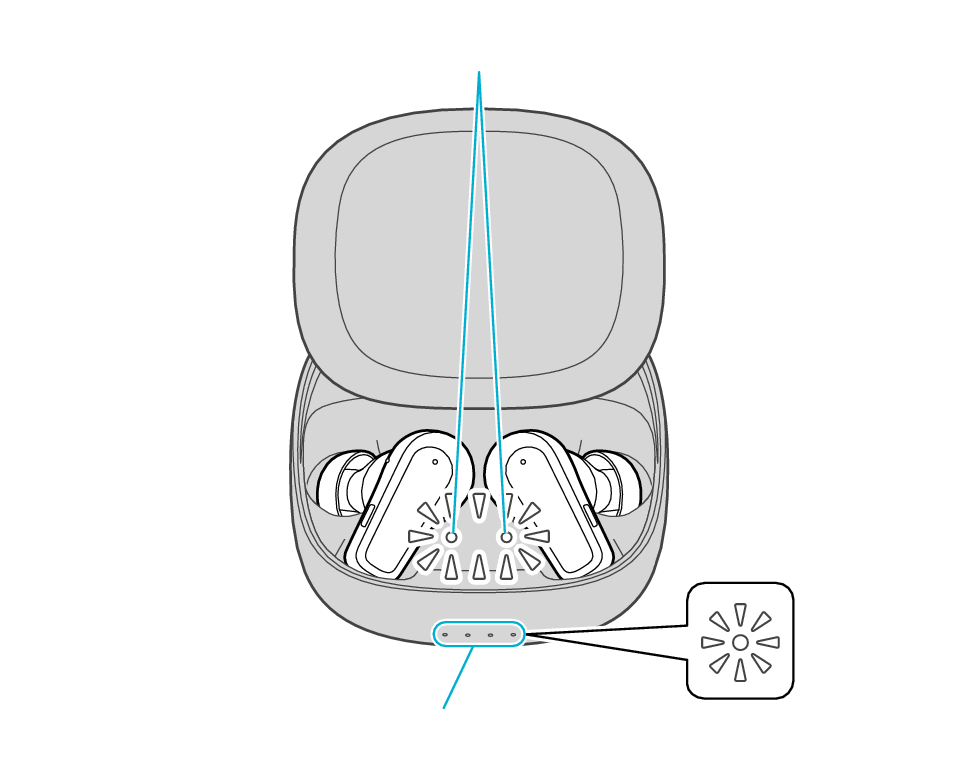
Indicators for the earphones
Indicators for the charging case
Slide the lid of the charging case to close it.
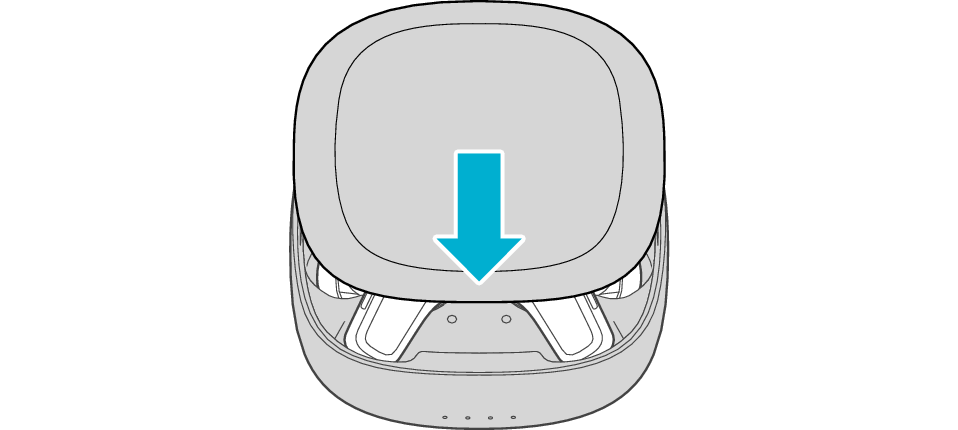
Make sure to close the lid of the charging case.
During charging of the charging case, the indicators for the charging case will remain lit or flashing. When charging is complete, all indicators go out.
The indicators for the earphones will remain lit while charging of the earphones is in progress. When charging is complete, the light of indicators goes out.
When charging the earphones or charging case that have not been used for a long period of time, it might take some time for the indicators to light up. Wait for the indicators to light up.
Click here if the indicators do not light up or start flashing >>
Checking whether power can be turned on
Remove both earphones at the same time.
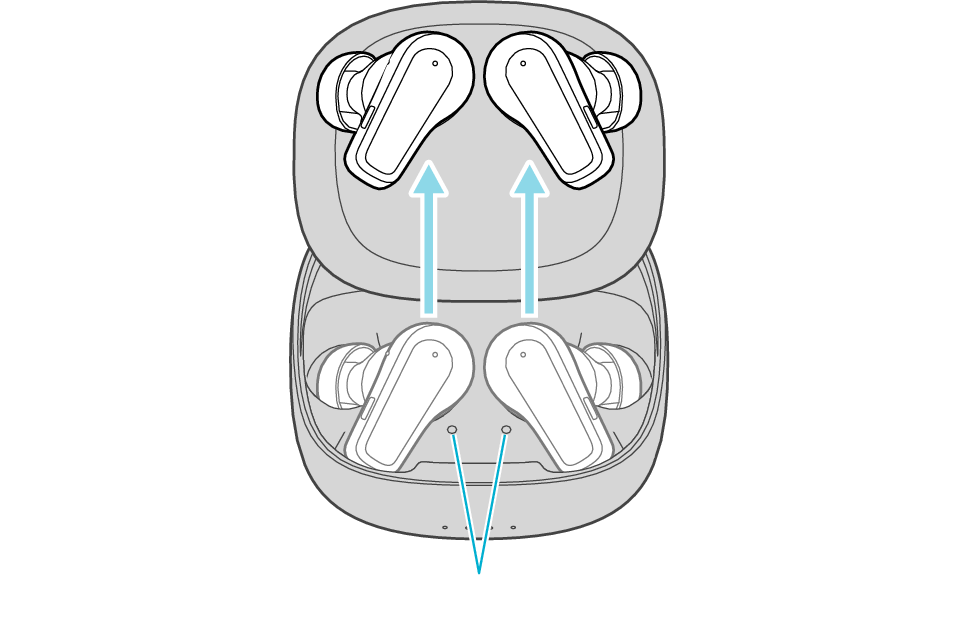
Indicators for the earphones
When you remove the earphones, the earphone indicator light on the charging case turns off.
When power is turned on, audio guidance is output from both sides of the earphones.
Select a relevant earphone state.
Thank you for using Troubleshooting Guide.
The earphones may not have been properly charged due to poor contact.
Clean the contacts and check whether the earphones can be properly charged.
Cleaning the contacts
Use a cotton swab to remove any dirt from the contacts of the earphones and charging case
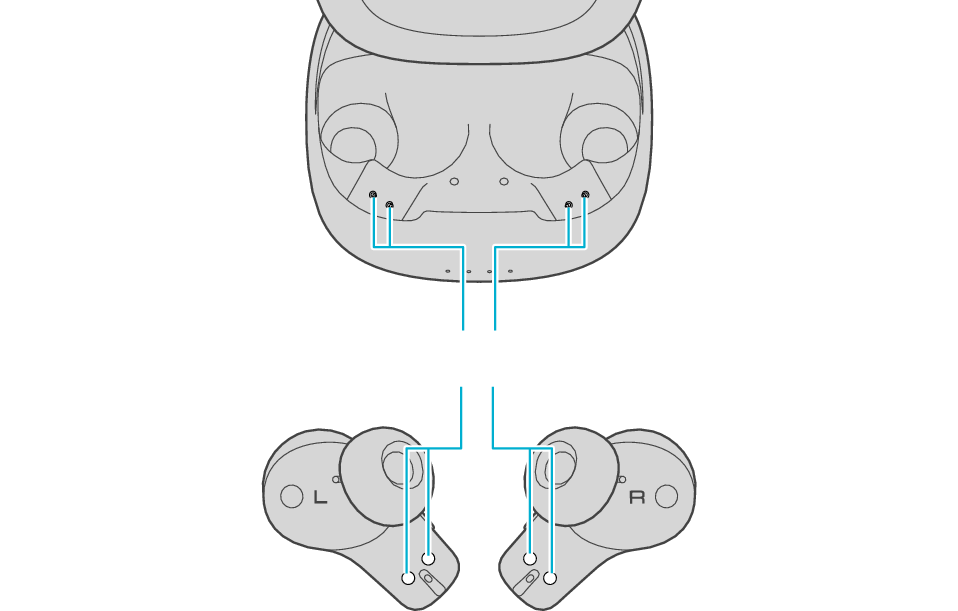
Charging terminals
Dirt or dust attached to the contacts may result in poor contact and prevent charging from being performed properly.