
Unable to connect (pair) earphones

If connection (pair) cannot be established, following the steps below may solve the problem.
Follow the steps to check whether there is any abnormality with the sound output.
If the power of the earphones is on, turn it off temporarily
With the earphones worn on the ears, press and hold the L and R buttons for approximately 10 seconds . “Power Off” Is output from the audio guidance and the power turns off.
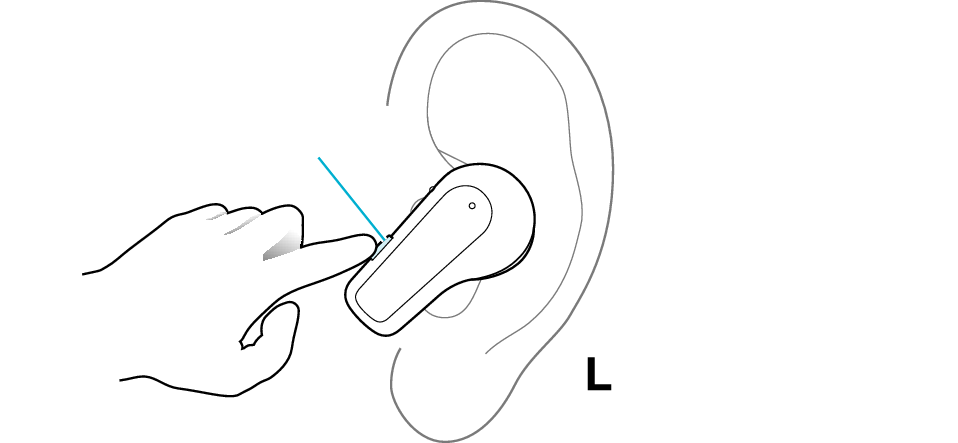
Button
The L earphone is used in the illustration.
Insert the earphones into the charging case. Check that charging has started, and then remove from the charging case.
Select the state after checking
Thank you for using Troubleshooting Guide.
Check whether connection with the Bluetooth device is successful.
Checking the Screen on the Connected Device
-
Turn on the Bluetooth setting of the device to be connected
-
Remove both earphones at the same time
-
Display the Bluetooth setting screen of the device you want to connect and check whether it is connected to the earphones
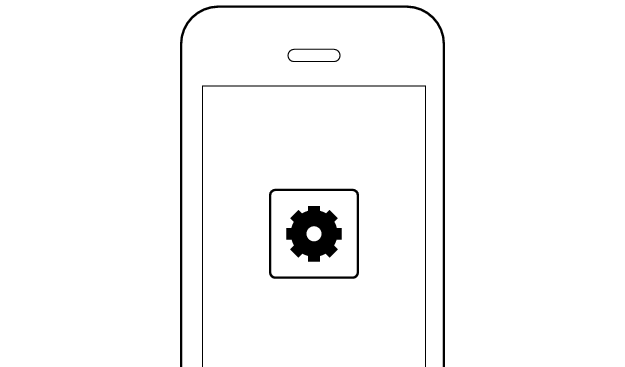
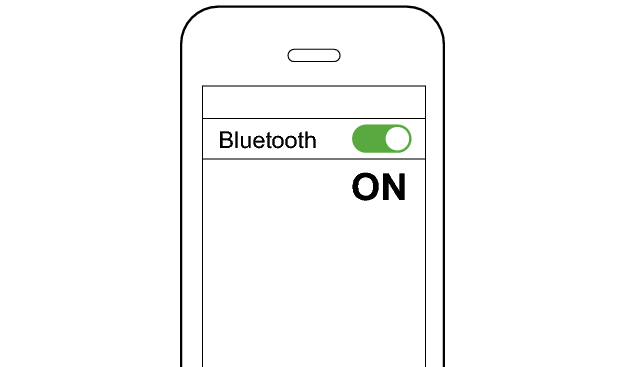
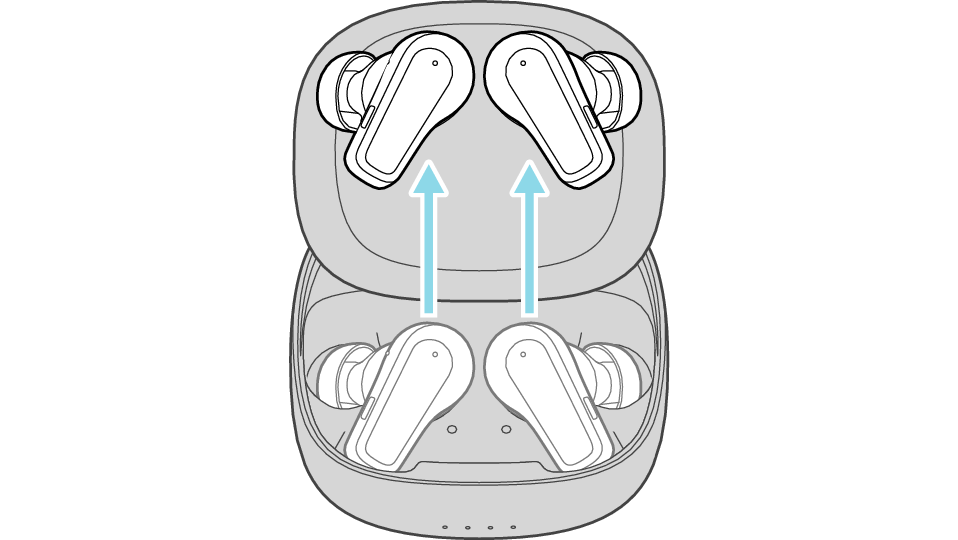
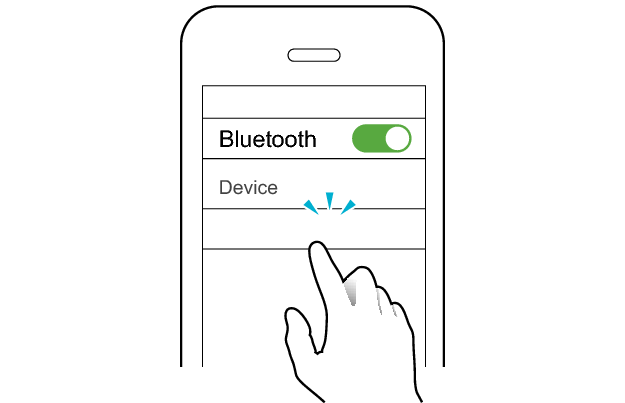
KENWOOD GLASS Core Pro
Select the state after checking
Check the app settings and volume.
Apps and Volume Control on the Connected Device
-
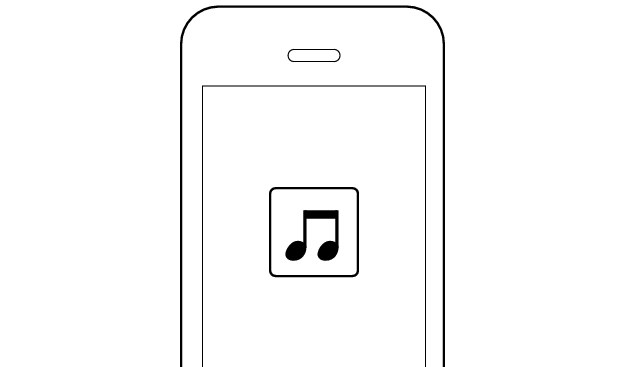
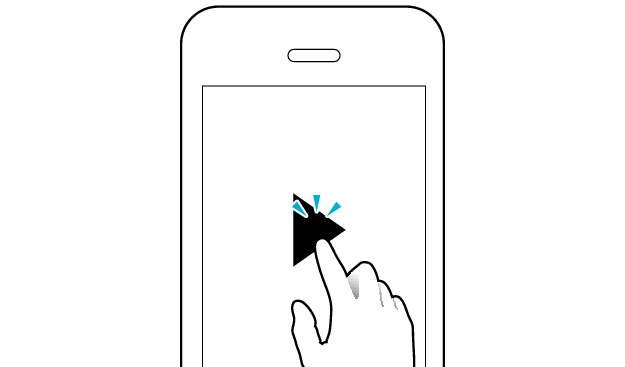
Open an app and play
-
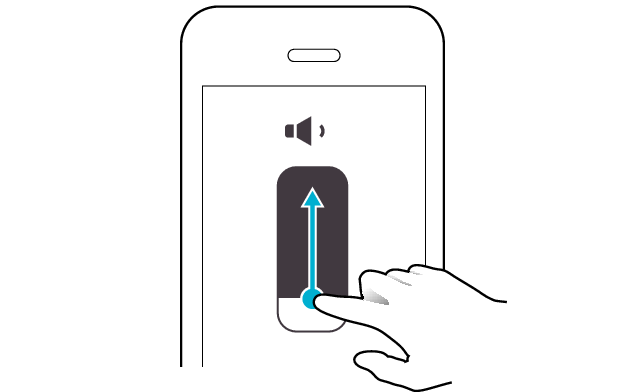
Adjust the volume
Select the state after checking
Thank you for using Troubleshooting Guide.
Initializing the earphones and re-establishing the connection may help to solve the problem.
Follow the steps below to check whether there is any abnormality with the sound output.
Initializing
First of all, go to the Bluetooth settings of the device to be connected and delete the information of this unit that is registered on it.
Depending on the device to be connected, multiple registration information of the System may be displayed as shown below.
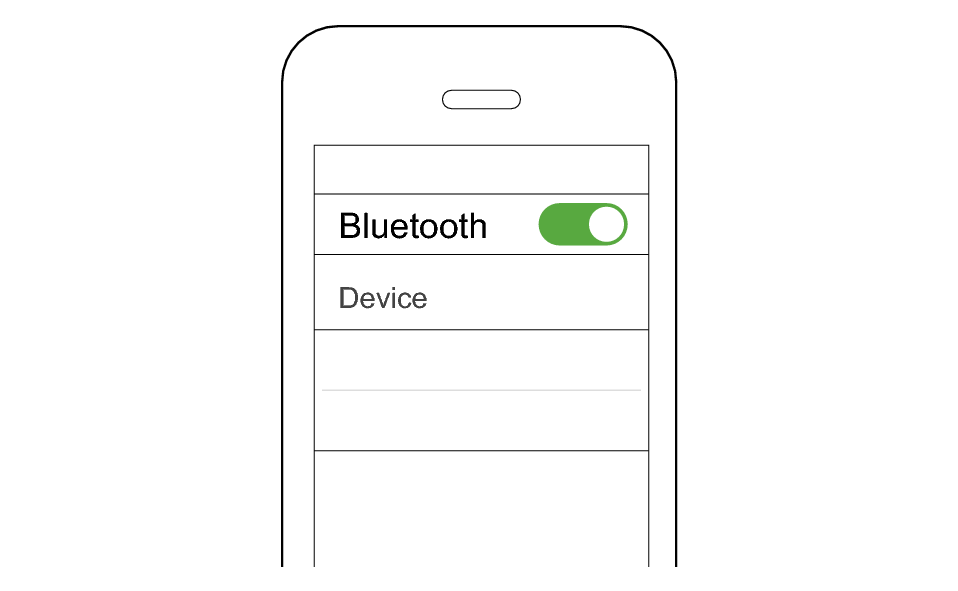
KENWOOD GLASS Core Pro
GLASS Core Pro-APP
In this case, delete all the registration information of the System.
Charge the charging case beforehand.
Remove the earphones once if they are inserted into the charging case.
Follow the steps below to initialize the settings of both the L and R earphones at the same time.
-
Insert the earphones into the charging case
-
When the indicators for the earphones are lit, press the L and R buttons at the same time six times in a row
-
While the indicators for the earphones are flashing, press and hold the L and R buttons at the same time for about one second
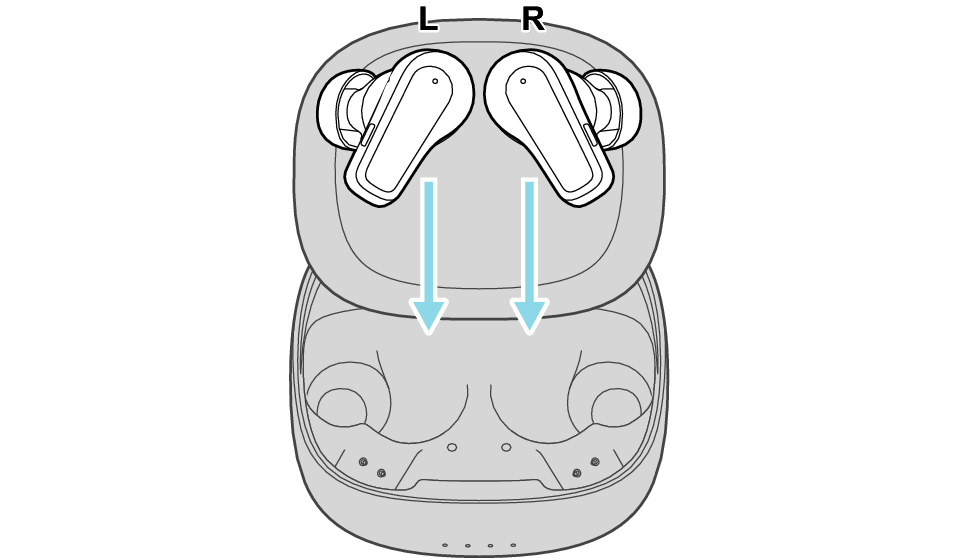
After a few seconds, the indicators for the earphones and charging case will light up.
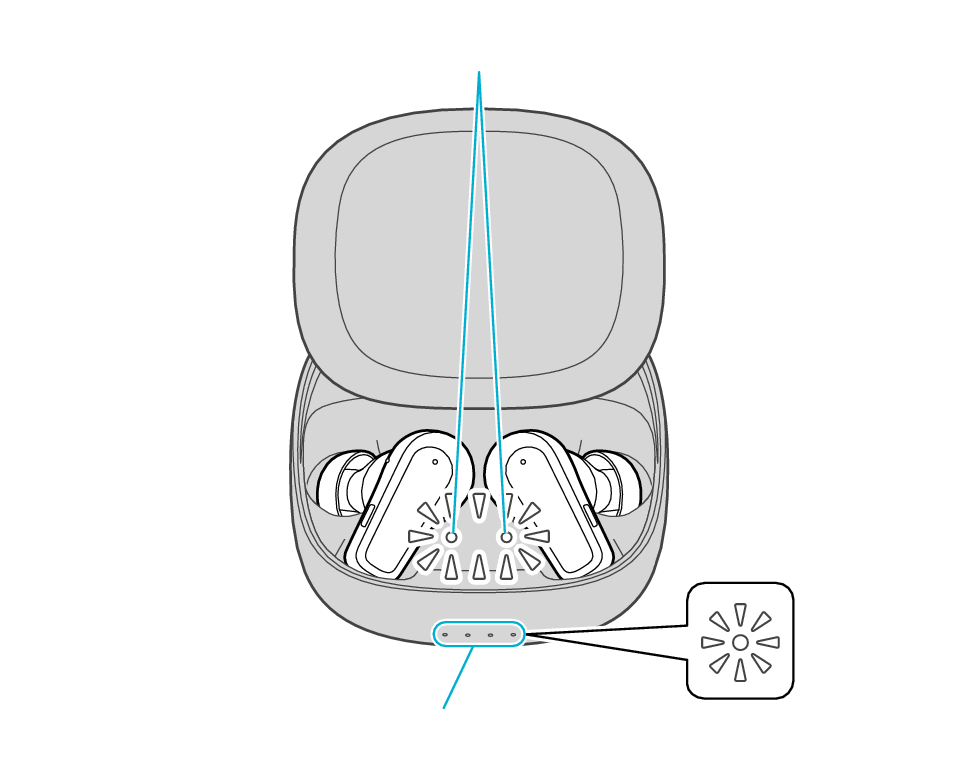
Indicators for the earphones
Indicators for the charging case
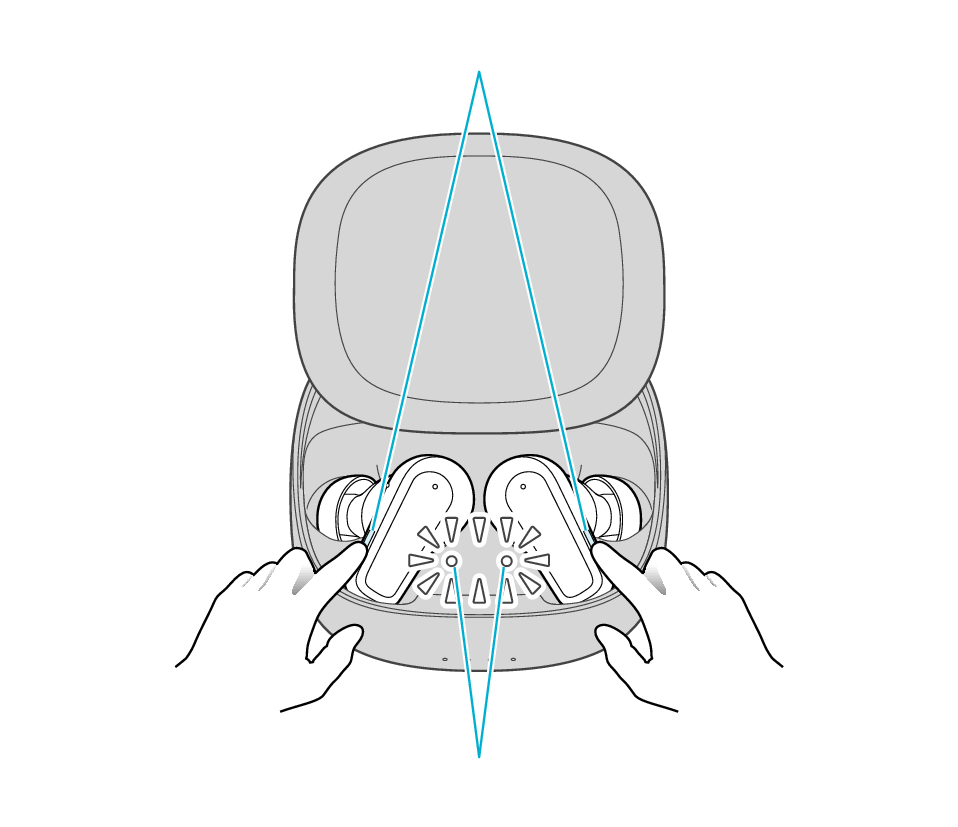
Button
Indicators for the earphones
The indicators for the earphones start to flash quickly.
If the indicators do not flash quickly, remove both earphones from the charging case, and start over again from step 1.
The indicators for the earphones will stop flashing in 10 seconds. While the indicators are flashing, press and hold the buttons for about 1 second.
Button
Indicators for the earphones
The L and R earphones are automatically connected inside the charging case.
After initialization is complete, the L and R indicators for the earphones will flash twice slowly.
After initialization is complete, charging of the earphones will resume, and the indicators for the earphones will turn on or go off.
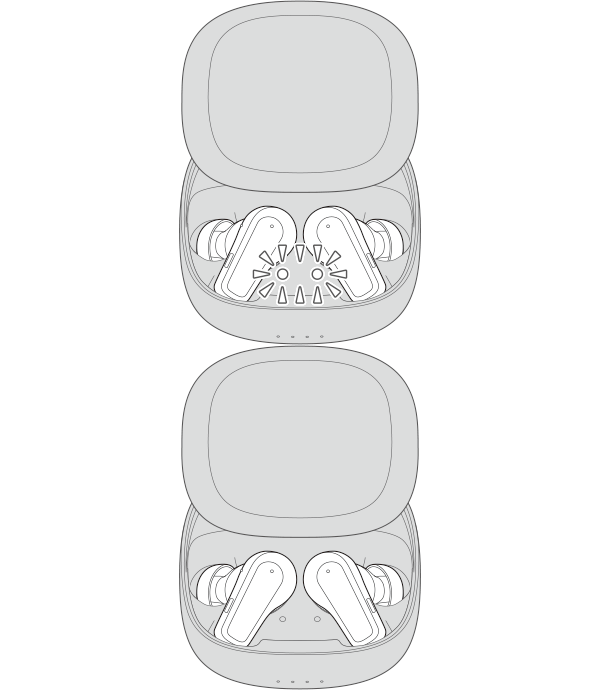
Connecting to a Device
-
Insert the earphones into the charging case
-
Remove both the L and R earphones
The indicators for the earphones light up.
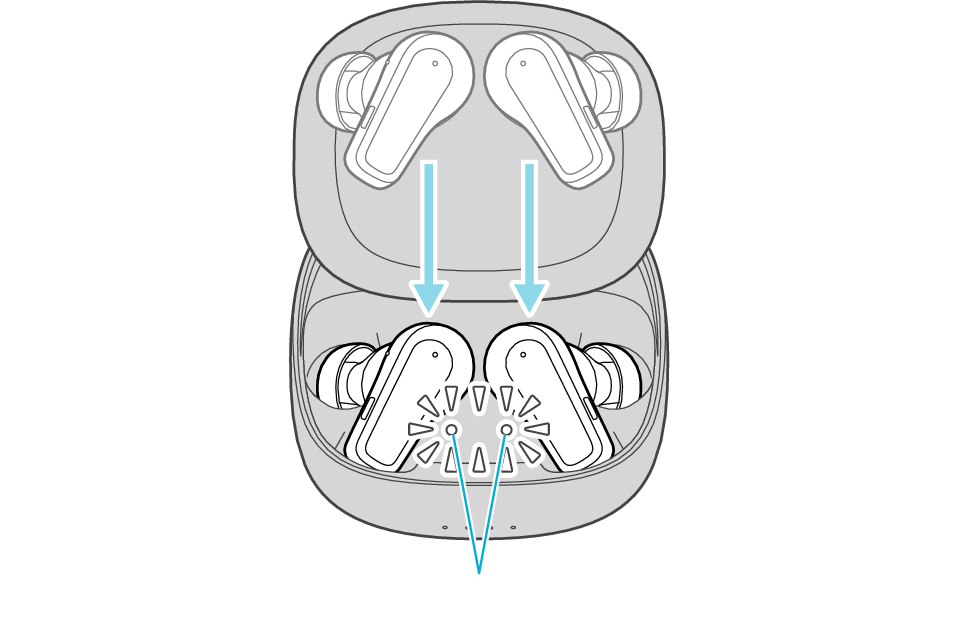
Indicators for the earphones
If a pop-up display appears on your Android device, perform connection by following the instructions on the display.
In other cases, try the steps below.
Turn on the BLUETOOTH connection setting of the device and select this unit
KENWOOD GLASS Core Pro
Check the screen on the Bluetooth device to confirm whether connection is successful.
When connection is established, you will hear an audio guidance notification “Device One Connected” through the earphones.
Once connection has been established, the earphones can be used for listening to music.
Apps and Volume Control on the Connected Device
-
Open an app and play
-
Adjust the volume
Select the state after checking
Thank you for using Troubleshooting Guide.
There seems to be a problem with the product.
If you require more assistance, please contact your local JVC customer support.
The power of the earphones may not be on.
Check whether the power of the earphones can be turned on.
Turn on the power of the earphones
With the earphones worn on the ears, press and hold the earphone buttons for about five seconds.
Button
The L earphone is used in the illustration.
When power is turned on, “Power On” is output from the audio guidance.
Select the state after checking
Check whether connection with the Bluetooth device is successful.
Checking the Screen on the Connected Device
-
Turn on the Bluetooth setting of the device to be connected
-
Remove both earphones at the same time
-
Display the Bluetooth setting screen of the device you want to connect and check whether it is connected to the earphones
KENWOOD GLASS Core Pro
Check the app settings and volume.
Apps and Volume Control on the Connected Device
-
Open an app and play
-
Adjust the volume
Select the state after checking
Thank you for using Troubleshooting Guide.
Initializing the earphones and re-establishing the connection may help to solve the problem.
Follow the steps below to check whether there is any abnormality with the sound output.
Initializing
First of all, go to the Bluetooth settings of the device to be connected and delete the information of this unit that is registered on it.
Depending on the device to be connected, multiple registration information of the System may be displayed as shown below.
KENWOOD GLASS Core Pro
GLASS Core Pro-APP
In this case, delete all the registration information of the System.
Charge the charging case beforehand.
Remove the earphones once if they are inserted into the charging case.
Follow the steps below to initialize the settings of both the L and R earphones at the same time.
-
Insert the earphones into the charging case
-
When the indicators for the earphones are lit, press the L and R buttons at the same time six times in a row
-
While the indicators for the earphones are flashing, press and hold the L and R buttons at the same time for about one second
After a few seconds, the indicators for the earphones and charging case will light up.
Indicators for the earphones
Indicators for the charging case
Button
Indicators for the earphones
The indicators for the earphones start to flash quickly.
If the indicators do not flash quickly, remove both earphones from the charging case, and start over again from step 1.
The indicators for the earphones will stop flashing in 10 seconds. While the indicators are flashing, press and hold the buttons for about 1 second.
Button
Indicators for the earphones
The L and R earphones are automatically connected inside the charging case.
After initialization is complete, the L and R indicators for the earphones will flash twice slowly.
After initialization is complete, charging of the earphones will resume, and the indicators for the earphones will turn on or go off.
Connecting to a Device
-
Insert the earphones into the charging case
-
Remove both the L and R earphones
The indicators for the earphones light up.
Indicators for the earphones
If a pop-up display appears on your Android device, perform connection by following the instructions on the display.
In other cases, try the steps below.
Turn on the BLUETOOTH connection setting of the device and select this unit
KENWOOD GLASS Core Pro
Check the screen on the Bluetooth device to confirm whether connection is successful.
When connection is established, you will hear an audio guidance notification “Device One Connected” through the earphones.
Once connection has been established, the earphones can be used for listening to music.
Apps and Volume Control on the Connected Device
-
Open an app and play
-
Adjust the volume
Select the state after checking
Thank you for using Troubleshooting Guide.
There seems to be a problem with the product.
If you require more assistance, please contact your local JVC customer support.
The charging case and earphones have run out of power.
Charge the earphones followed by reconnecting to check whether sound can be heard properly.
Charge the charging case and earphones
-
Charge the charging case
-
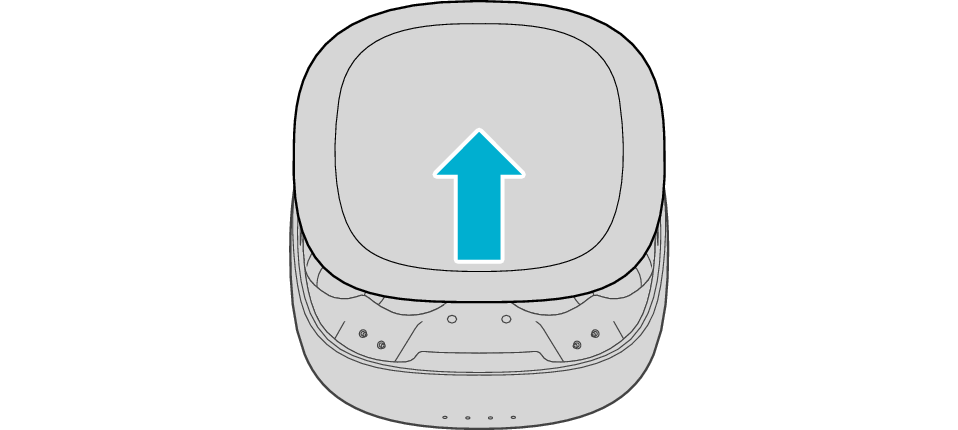
Open the charging case
-
Insert the earphones into the charging case
-
Close the charging case
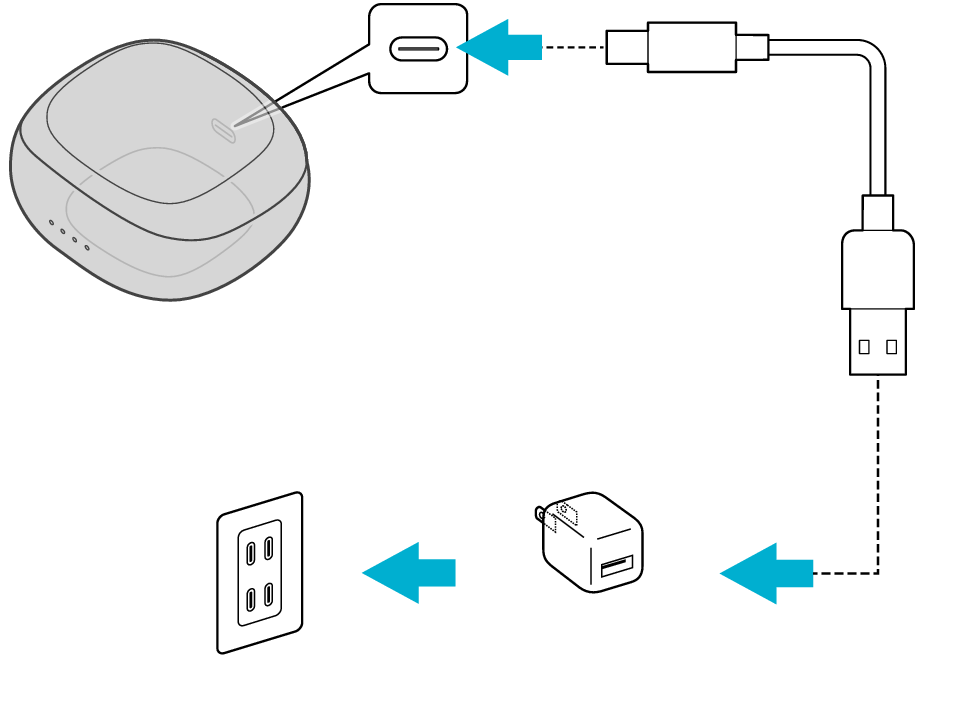
5V TYPE
Slide the lid of the charging case to open it.
Indicators for the earphones
Indicators for the charging case
Slide the lid of the charging case to close it.
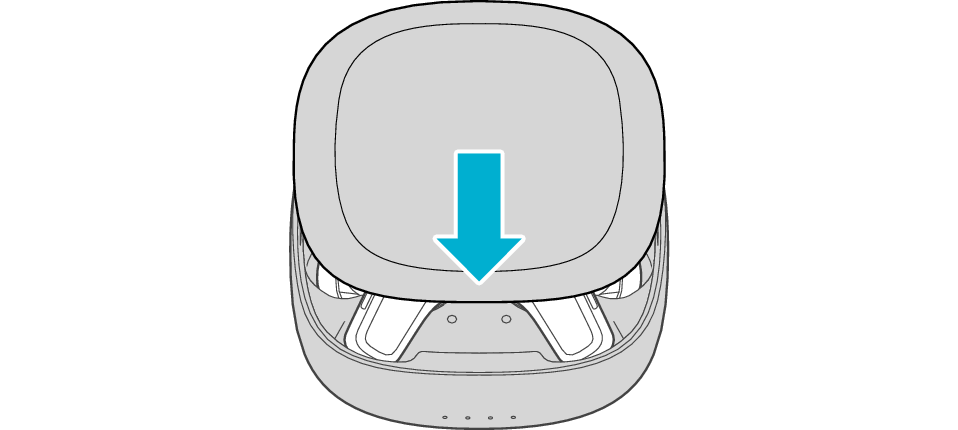
Make sure to close the lid of the charging case.
During charging of the charging case, the indicators for the charging case will remain lit or flashing. When charging is complete, all indicators go out.
The indicators for the earphones will remain lit while charging of the earphones is in progress. When charging is complete, the light of indicators goes out.
When charging the earphones or charging case that have not been used for a long period of time, it might take some time for the indicators to light up. Wait for the indicators to light up.
Click here if the indicators do not light up or start flashing >>
Connecting to a Device
-
Insert the earphones into the charging case
-
Remove both the L and R earphones
The indicators for the earphones light up.
Indicators for the earphones
If a pop-up display appears on your Android device, perform connection by following the instructions on the display.
In other cases, try the steps below.
Turn on the BLUETOOTH connection setting of the device and select this unit
KENWOOD GLASS Core Pro
Check the screen on the Bluetooth device to confirm whether connection is successful.
When connection is established, you will hear an audio guidance notification “Device One Connected” through the earphones.
Once connection has been established, the earphones can be used for listening to music.
Apps and Volume Control on the Connected Device
-
Open an app and play
-
Adjust the volume