
The Wind Cut effect is weak (when using the app)

The following describes possible solutions when the Wind Cut effect may be weak. Follow the steps below to check whether the problem can be resolved.
The Wind Cut may not be enabled.
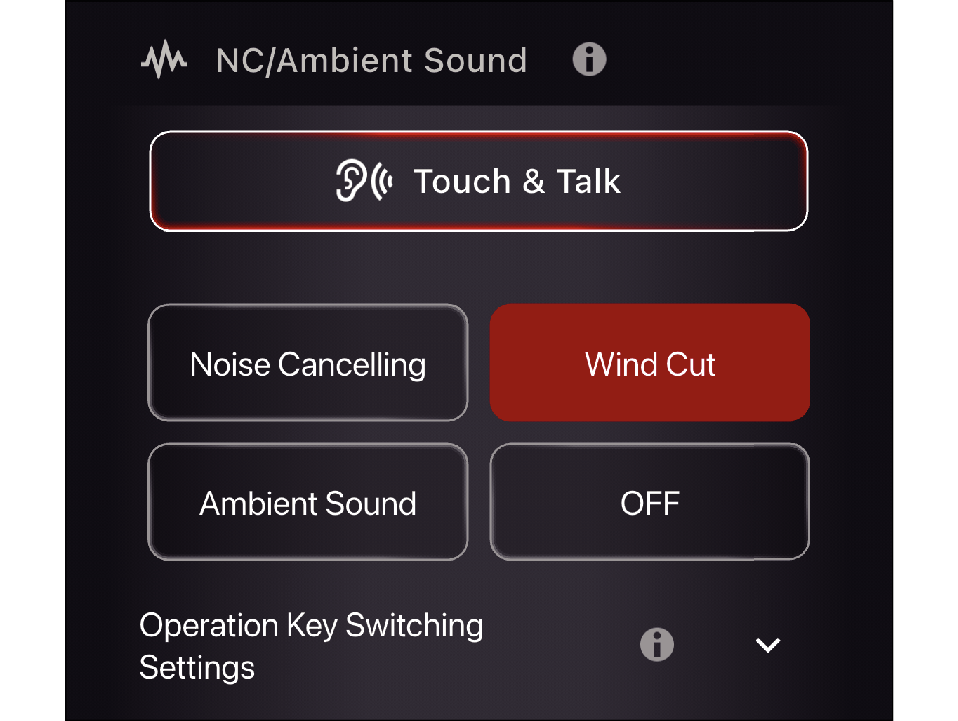
The Wind Cut feature can be switched on or off in the app.
Switching On/Off the Wind Cut Feature
Selecting “Wind Cut” in the app switches on the Wind Cut feature.
Select the state after checking
Thank you for using Troubleshooting Guide.
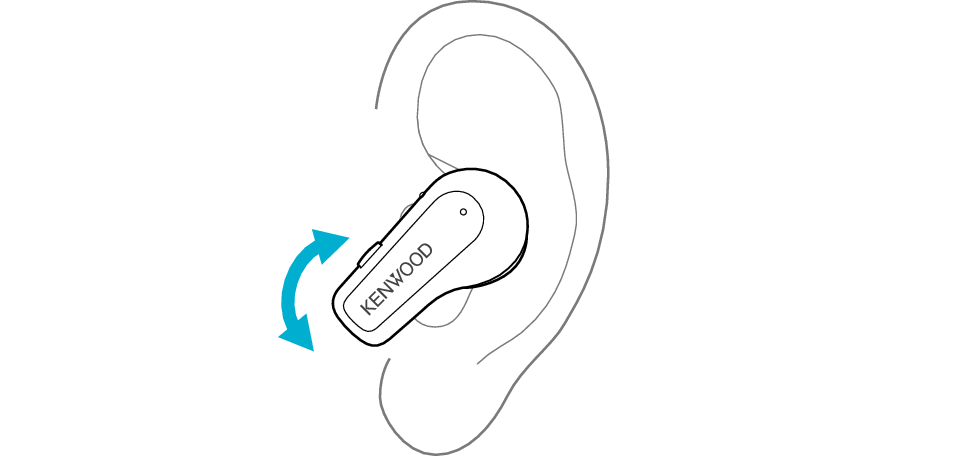
Adjusting the position of the earphone may improve the symptom.
Adjusting the Earphone Position
Rotate the earphones to adjust them to the most comfortable angle.
Select the state after checking
Thank you for using Troubleshooting Guide.
Replacing the earpieces may improve the symptom.
The medium-size silicone earpieces are attached when purchased.
To enjoy good sound quality, choose a set of earpieces with a size that fits snugly into your ears.
If the earpiece size or positioning is incorrect, the bass sound may be insufficient or the effectiveness of the Wind Cut feature may be reduced.
Check that the earpiece is securely attached as shown in the figure.
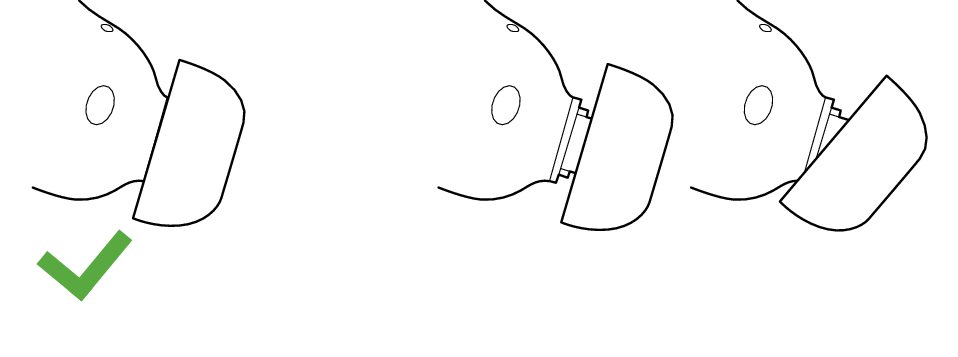
Correct
Wrong
If the earpiece is not securely attached, it may slipped off when in use and remain in your ear. If the earpiece remains in your ear, be careful not to push it further into your ear.
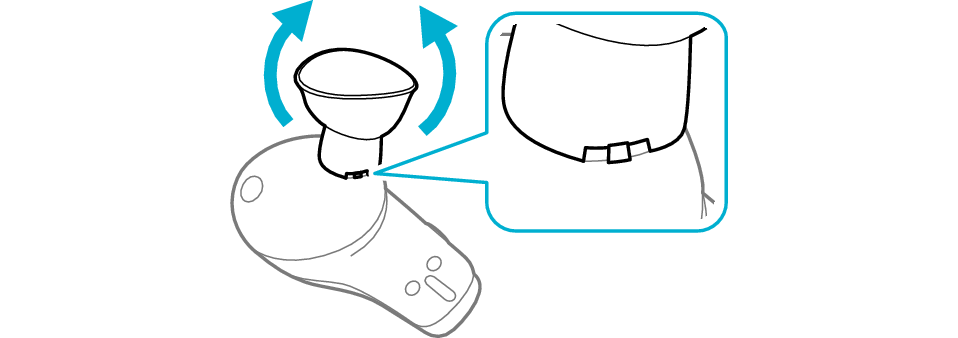
Adjusting the position of the earpieces may improve the issue.
Adjusting the Earpiece Position
-
Flip the earpieces as shown in the illustration below, and align the notch on the earpieces and convex shape on the earphones.
-
Flip back the earpieces as illustrated in the diagram.

Select the state after checking
Thank you for using Troubleshooting Guide.
The effect may not be noticeable due to the surrounding environment.
The Wind Cut function suppresses wind noise detected by the microphone.
When the wind is weak, the Wind Cut function may not work.
Move to another location and check the effect.